How to Use Your Audio Unit and VST3 Plug-ins in a Live Looper on a Mac
Most of my sound lives in plug-ins. My guitar goes through an amp sim, my vocal chops go through a plate reverb, and half my synth parts are Surge XT. For a long time that meant a live looper was a separate world from the tone I'd built in the studio.
LOOM, the live looper I build for macOS, hosts Audio Unit and VST3 plug-ins as of version 1.8. This guide shows where you can put a plug-in, how you control it while you play, and what LOOM does when a plug-in crashes in the middle of a song. If you use plug-ins protected by iLok or PACE, such as Neural DSP's, you need LOOM 1.8.1 or later.
Finding your plug-ins
LOOM offers a plug-in only after it has scanned it. The first time you open LOOM, it asks before it scans. After you install something new, choose File ▸ Scan for Plugins… (⌥⌘P). LOOM never starts a scan on its own, and it won't start one while a track is playing or recording.
A plug-in that fails its scan goes on a blocklist with the reason, and LOOM doesn't offer it. You can try it again from there.
Three places a plug-in can go
On an input. Put an amp sim or a compressor on the input your guitar or mic comes in on. What the plug-in does is recorded into the take, the same as playing through a pedal into a looper. This is where my Tone King amp sim lives.
On a loop track. Put a reverb or a delay on a loop track. The plug-in processes the loop as it plays, so you can change it later without re-recording anything.
As an instrument. On an instrument track, choose a plug-in synth in place of LOOM's own instrument. You play it live from your MIDI keyboard or controller, and the track loops what you played.
Each track and input has eight effect slots, and you can mix plug-ins with LOOM's own effects in the same chain.
LOOM draws the plug-in's controls
Click a slot that holds a plug-in and its drawer opens. The drawer draws the plug-in's settings as LOOM controls, grouped the way the plug-in groups them: knobs, switches, segmented choices and steppers. You can edit the plug-in with the mouse or the keyboard without opening its window. An instrument plug-in's controls are in the same form in the instrument track's editor dock.
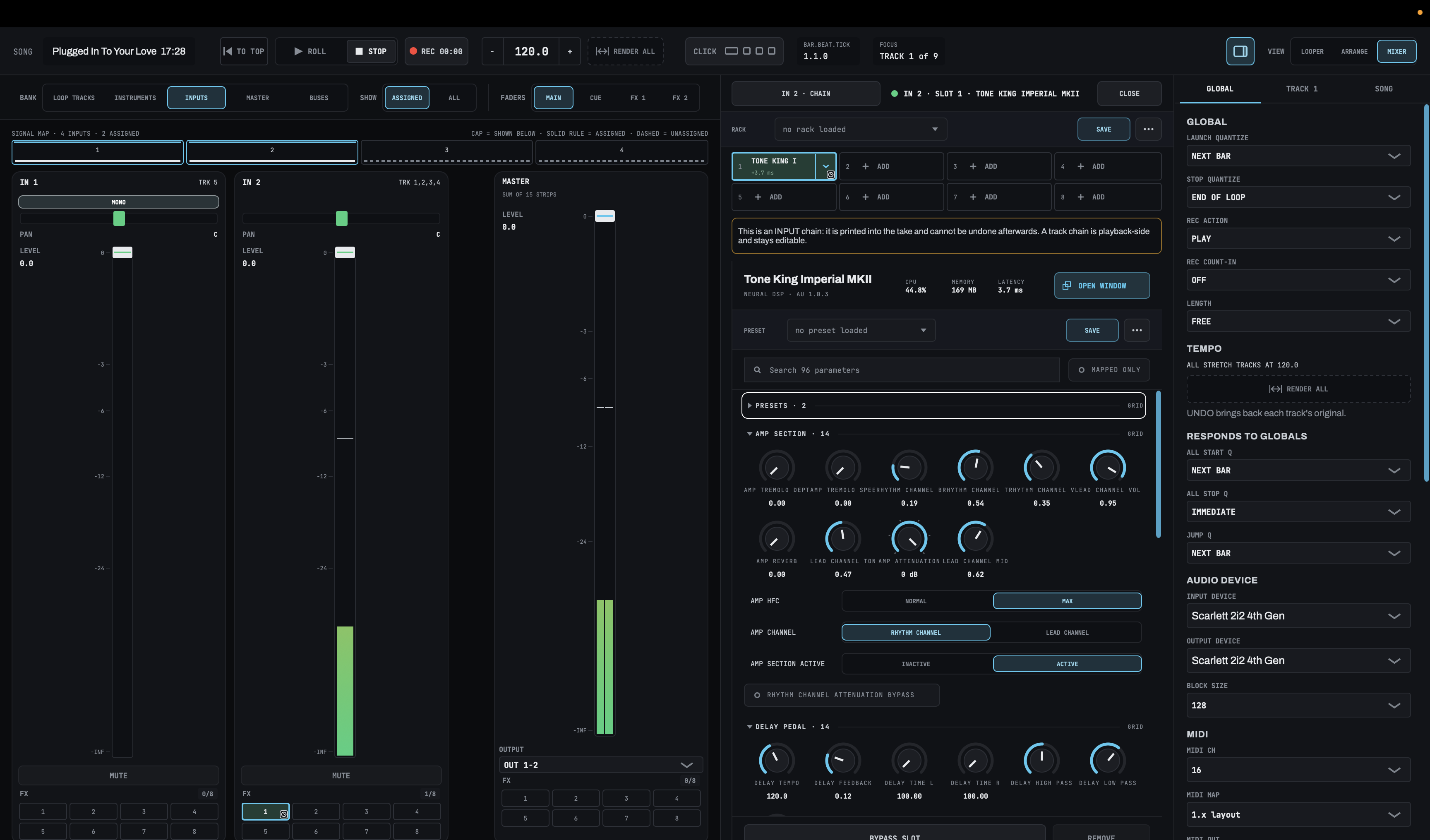
At the top, the drawer shows how much CPU and memory the plug-in uses and how much latency it adds. Below that is a search field. A plug-in like Surge XT has hundreds of settings, so type part of a name to find one. MAPPED ONLY shows just the controls you've mapped, automated or put on a macro.
If LOOM picks the wrong kind of control for a setting, right-click it and choose another under DRAW AS. LOOM remembers your choice for that plug-in on your Mac, so every song draws it your way.
The plug-in's own window
OPEN WINDOW opens the interface the plug-in's maker designed. It stays in front of LOOM while you work in LOOM, and a change you make in either place reaches the plug-in.
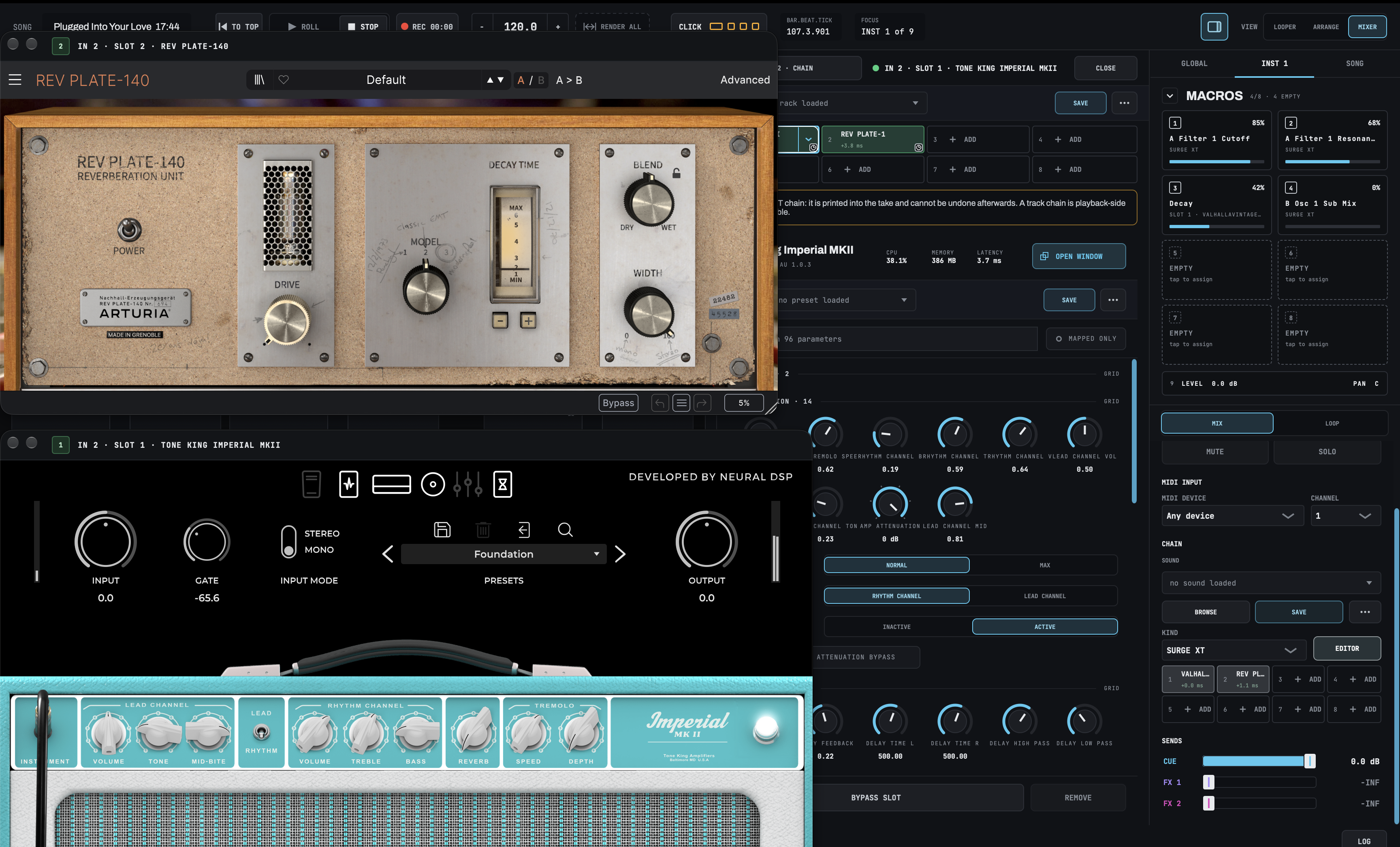
One thing to know: ⌘Z in LOOM doesn't undo a change you make in the plug-in's own window.
Mapping, automation and macros
Right-click any control in a plug-in's drawer and you get the same menu LOOM's own effects have:
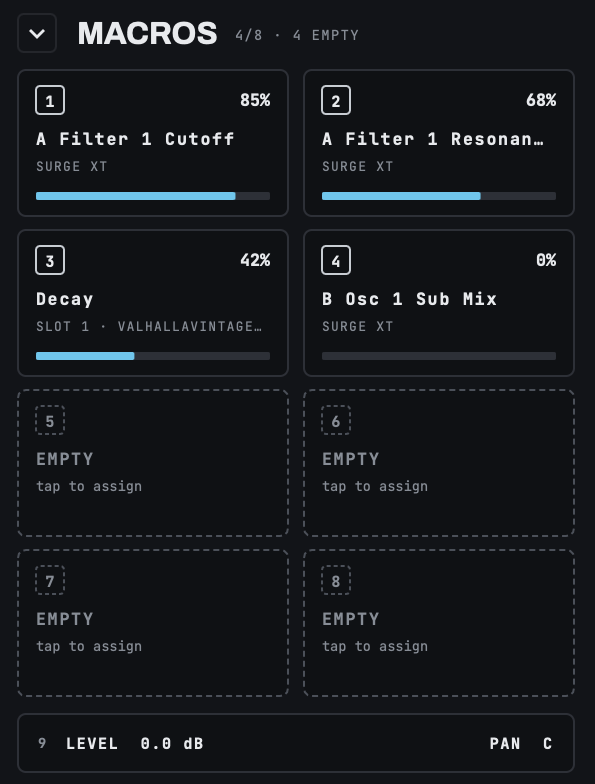
MAP…opens MIDI mapping with that control already chosen. Move a knob or press a switch on your controller, and it's mapped.ADD LANEadds an automation lane for it in the arrange view, so a song can sweep a filter or bring up a reverb at the bar you choose.MAKE MACROputs it on the track's first empty macro.
Macros are where this gets fun. A macro can point at a control in any plug-in on the track, so one knob on your controller can open Surge XT's filter while another sets the decay of the reverb after it.
Presets, racks and sounds
The drawer's PRESET bar lists the plug-in's own presets and any you've saved in LOOM. A preset you save in LOOM holds the plug-in's whole state.
A rack saves a whole effects chain, plug-ins and LOOM effects together, with every setting. On an instrument track, a sound saves the instrument plug-in along with the effects after it.
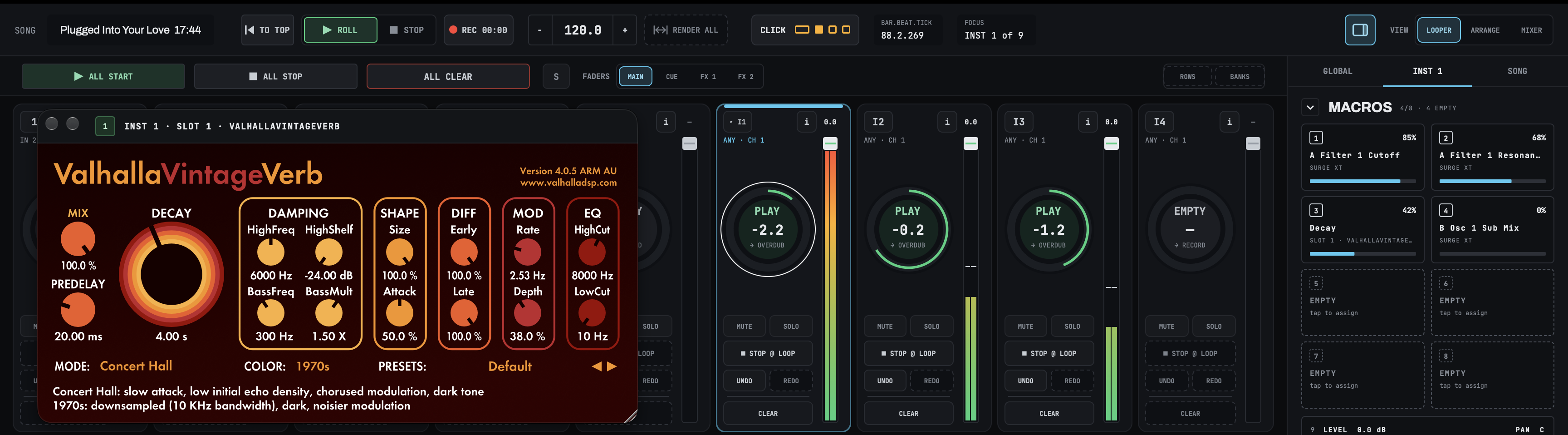
In the arrange view, a preset lane can switch a plug-in to another preset at a bar, so a song can go from a clean amp to a lead tone on the chorus without you touching anything. LOOM loads the plug-ins a song needs when you open it, never while it plays.
When a plug-in crashes
This is the part I cared about most. A plug-in that crashes in a DAW usually takes the DAW with it. On stage that means silence.
In LOOM, each plug-in runs in a helper process of its own, outside LOOM. If a plug-in crashes or stops responding, only its slot is affected. An effect passes its input through unchanged and an instrument goes quiet, while LOOM and every other track keep playing. LOOM restarts the plug-in with its last settings. If it crashes three times in a minute, LOOM stops trying and tells you, and you can restart or remove it from the drawer.
Latency
Every plug-in adds some latency. Where it matters depends on where the plug-in is:
- On a loop track, LOOM reads the loop early, so it plays on time. The slot shows what the plug-in adds, such as
+2.7 ms. - On an input, you hear yourself slightly later, because LOOM can't read a live input early. LOOM still places the take where you played it.
- On an instrument, notes you play live sound slightly late, and LOOM tells you by how much when the plug-in loads. Notes the loop plays back are on time.
Memory and missing plug-ins
LOOM keeps a song's plug-ins inside a memory budget that you set, and won't load one that would go over it. A slot that doesn't fit keeps its settings and says so.
If you open a song on a Mac that doesn't have one of its plug-ins, the song opens anyway. The slot keeps the plug-in's settings and passes its signal through until the plug-in is installed.
Privacy
LOOM itself never connects to the internet. A third-party plug-in you choose to use may connect on its own, for example to check its license or look for updates. That's between you and the plug-in's maker.
Try it
LOOM is a live looper for macOS, with a free 14-day trial. Download it here. The plug-ins chapter of the manual covers everything in this post in more detail.
Get the LOOM keyboard shortcuts and controller layouts.
Every key LOOM answers to, in a light version for printing and a dark one for your screen, plus mapping sheets for the Arturia KeyLab mkII, the Arturia MiniLab 3, the Novation Launchkey MK4, the Korg nanoKONTROL2 and the Morningstar MC6 Pro. You’ll also get an email when there’s a new tutorial or release. Unsubscribe any time.