MIDI Learn in a Mac Looper: Map Any Knob, Fader or Footswitch in LOOM
Most controllers have more knobs than a looper has uses for. Until version 1.5, LOOM answered only a fixed set of notes for the loop commands. LOOM 1.5 adds a MIDI Mapping window, so you can send any knob, fader, pad or footswitch to nearly any control in LOOM. Anything the arrange view can automate can be mapped, which covers almost every control on the instruments and effects, and every fader, send, pan and mute. The exceptions are controls that choose from a list of options, such as a filter type. So can commands that automation cannot run, such as recording a track or loading the next preset.
This post walks through the window from an empty table to a working rig. The full reference is the MIDI mapping chapter of the manual. If you are setting up a pedalboard with the built-in note layout, start with live looping on a Mac with a MIDI foot controller instead.
Open the MIDI Mapping window
Choose View › MIDI Mapping, or press ⇧⌘M. The window opens beside LOOM's main window, so you can keep both on screen. Closing it hides it, and it opens again where you left it.
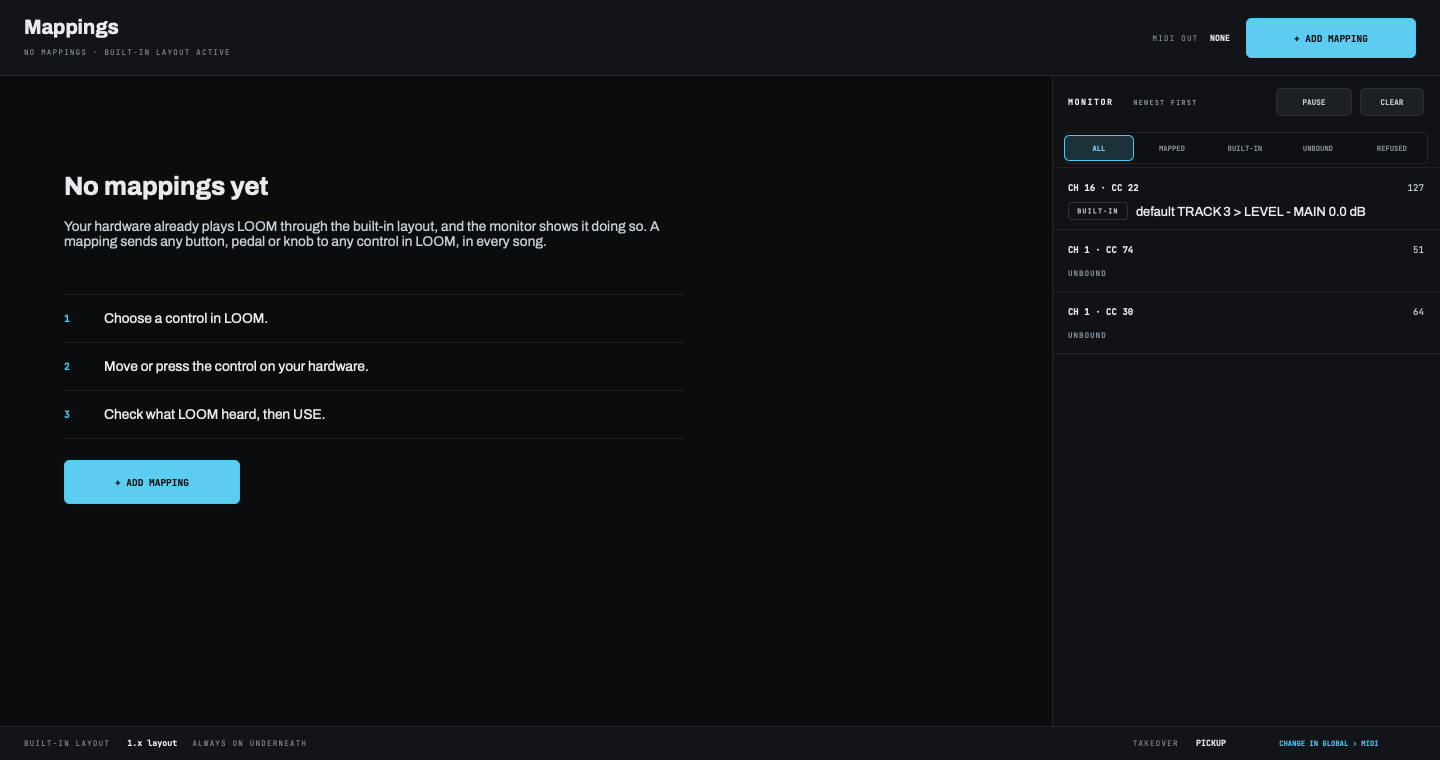
The window has two halves:
- The table, on the left, lists your mappings. It starts empty.
- The monitor, on the right, lists every MIDI message LOOM receives and what LOOM did with it, whether or not anything is mapped.
The built-in layout keeps working underneath your mappings. A controller you already set up for it goes on working, and a mapping replaces the built-in behaviour only on the one message it uses.
Add a mapping
You choose the control in LOOM first, then touch the control on your hardware.
1. Choose the control in LOOM
Press + ADD MAPPING. The Map a control chooser opens with three columns: a strip, then a section of that strip, then the control. These are the same columns the arrange view uses when you add an automation lane. Type in the search field to narrow all three at once.
A control that one of your mappings already drives shows its source on a second line, such as MAPPED · CH 1 · CC 7. You can still choose it.
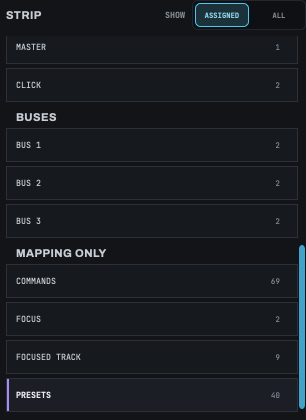
The end of the first column has a group called MAPPING ONLY. These targets are commands rather than settings, so the arrange view cannot automate them, but a button can run them:
| Group | What it offers |
|---|---|
COMMANDS |
Every command in the built-in layout: each track's ring, overdub, undo, redo, stop, clear and play, and the global ALL START, ALL STOP, ALL CLEAR, TRANSPORT START, TRANSPORT STOP and PERFORM FROM TOP. |
FOCUS |
NEXT TRACK and PREVIOUS TRACK, the same moves as the → and ← keys. |
FOCUSED TRACK |
Ring, play, stop, undo, redo, clear, level, pan and mute for whichever track has the focus when the message arrives. |
PRESETS |
NEXT PRESET and PREVIOUS PRESET for each effects rack, each effect slot and each instrument track. |
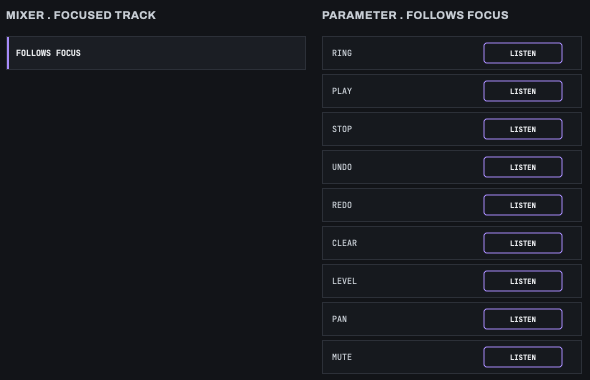
FOCUS and FOCUSED TRACK together let a small controller run a big session. Map two buttons to NEXT TRACK and PREVIOUS TRACK, map a few more to the focused track's ring, stop and undo, and map one knob to its level. The same handful of controls then works whichever track you are on.

Each NEXT PRESET press loads the next entry in the list the preset picker shows, so the order of your saved racks is the order a button steps through them.
2. Move the control on your hardware
When you choose a control, the chooser closes and a card opens at the top of the table, reading LISTENING. Move or press one control on your hardware. LOOM takes the first note or control change that arrives, from any device and on any channel.
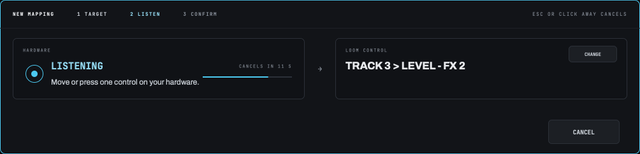
If nothing arrives in 15 seconds, the card closes and nothing is added. CANCEL, Esc and clicking outside the card also close it.
While LOOM listens, the message still does what it normally does. A note in the built-in layout still rings its track, and a knob you have already mapped still moves its control.
3. Check what LOOM heard, then press USE
The card now shows the message, how it moved, and what LOOM proposes.
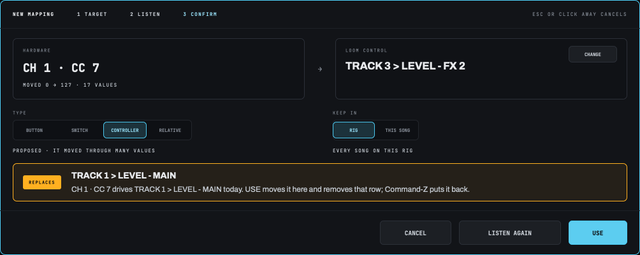
TYPE is how LOOM reads the message. LOOM proposes one from what it heard, and you can choose another:
CONTROLLER: a knob, fader or expression pedal. Proposed for a control change that sent values other than 0 and 127.BUTTON: a momentary button or footswitch, where each press fires. Proposed when LOOM saw the button go back within half a second.SWITCH: a latching button or pedal that stays down until you press it again. Proposed when the button stayed at 127.RELATIVE: an endless encoder that sends "up a bit" and "down a bit" rather than a position. LOOM does not propose this one, so choose it yourself.
Press and release a button the way you normally would, because LOOM watches the release to tell BUTTON from SWITCH. Until it decides, the line reads DECIDING · WAITING FOR THE RELEASE.
KEEP IN is where the mapping lives:
RIG, the default, keeps the mapping for every song on this Mac. Use it for the controls you always want in the same place.THIS SONGsaves the mapping with the song you have open. In that song it wins over a rig mapping on the same message, so one song can borrow a knob for something special without changing the rest of your set.
LOOM also tells you if the message is already in use:
REPLACESmeans one of your own mappings uses that message.USEmoves the message to the new control and removes the old mapping.⌘Zputs it back.OVERRIDESmeans the message is part of LOOM's built-in layout. Your mapping acts instead, on that one message. Delete the mapping and the built-in command comes back.
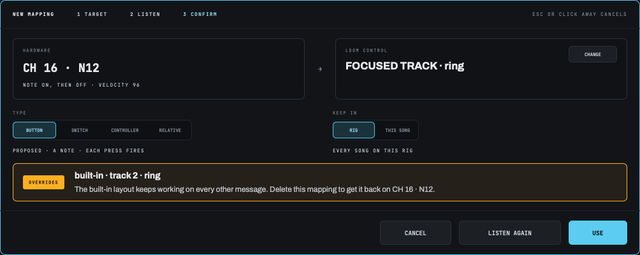
If the card is wrong, LISTEN AGAIN forgets the message and listens for another, and CHANGE picks a different control in LOOM and keeps the message. When it is right, press USE.
Read the table
Each mapping is one row: its source, its type, its target, where it is kept and what it is doing now.
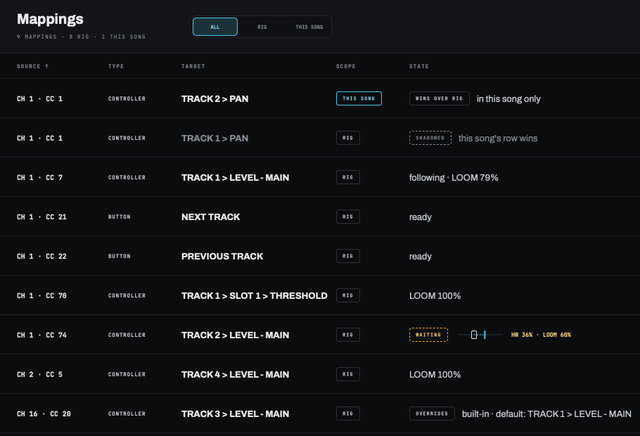
The STATE column is the one to read when something does not work:
| State | What it means |
|---|---|
A value, or ready |
The mapping is working. A control shows LOOM's value, and a command shows ready. |
WAITING |
The hardware is not at LOOM's value yet, so the control is not moving. See When a knob is not where LOOM's control is, below. |
INERT |
The control is not in the song you have open, for example because the effect slot is empty. LOOM keeps the row, and it works again as soon as the control exists. |
WINS OVER RIG |
A song mapping that replaces a rig mapping on the same message, in this song only. |
SHADOWED |
The rig mapping that a song mapping is replacing. |
OVERRIDES |
The mapping uses a message from the built-in layout, and acts instead of it. |
ALL, RIG and THIS SONG above the table choose which rows you see. EDIT on a row opens the same chooser and card to change it, and × deletes it. While the window has keyboard focus, ⌘Z and ⇧⌘Z undo and redo changes to the table. They do not touch your song.
Use the monitor to find out why
When a knob does nothing, the monitor tells you why. It lists every message LOOM receives, newest first, and what happened to it.
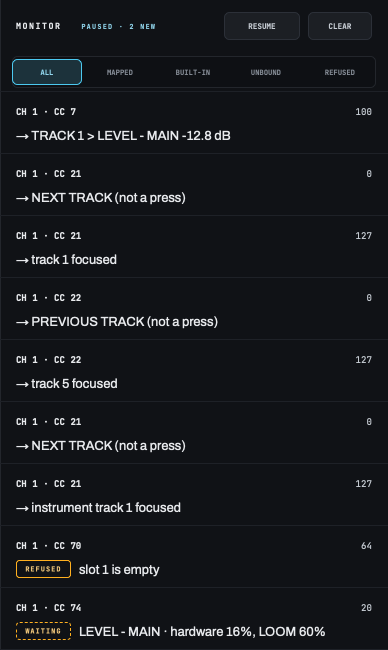
| Line | What happened |
|---|---|
| An arrow and a control | One of your mappings set that control to that value. |
BUILT-IN |
The built-in layout acted on the message. |
UNBOUND |
Nothing listens to that message. Usually a control you have not mapped yet, or a controller on the wrong channel. |
REFUSED |
Something matched the message but could not act, and the line says why, such as slot 1 is empty. |
WAITING |
A knob that has not reached LOOM's value yet, with both positions. |
PAUSE freezes the list so you can read it, and counts what arrives meanwhile. The buttons above the list filter it to MAPPED, BUILT-IN, UNBOUND or REFUSED lines.
When a knob is not where LOOM's control is
When you move a knob that is not where LOOM's control is, what happens depends on the TAKEOVER setting. In PICKUP, LOOM's default, the control does not jump to the knob. It waits until the knob reaches its value, then follows. That stops a level leaping to full the first time you brush a fader.
While a control waits, LOOM shows you where your hardware is:
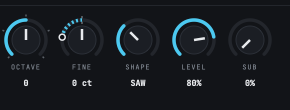
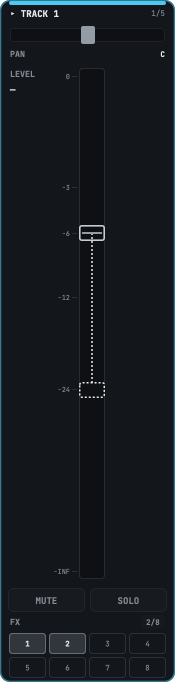
The notice row at the bottom of the window says it in words, naming the control and which way to move, or counting the controls when more than one waits:

In PICKUP, you take over a control by moving the hardware past LOOM's value. If you would rather a control jump straight to the knob, or catch up gradually, change TAKEOVER in the side panel's GLOBAL tab, under MIDI:
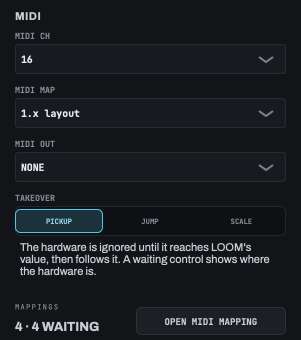
PICKUP, the default, waits as described.JUMPsets the control to the hardware's position on the first message.SCALEmoves the control toward the hardware, so the two reach the end of the range together.
Send it back: MIDI OUT
If your controller has motorised faders, lit pads, or an on-screen surface such as TouchOSC, set MIDI OUT in the same section to it. LOOM then sends each of your mappings' state back to the controller on the mapping's own message: a knob's position for a CONTROLLER mapping, and on or off for a BUTTON or SWITCH. It sends the built-in layout's track states and mixer values as well.
A controller that receives LOOM's values already sits where LOOM's controls are, so in PICKUP there is nothing to wait for. While you move a control, LOOM does not send that control back, so it cannot fight your finger.
Do not choose an output that leads back into LOOM, such as an IAC Driver bus. LOOM listens to every MIDI source, so it would hear its own feedback as commands.
A small rig, mapped in five minutes
Here is a setup for a controller with eight pads and eight knobs. The pads run whichever track has the focus, and the knobs cover the parts of the mix you reach for during a set:
| Hardware | Map to | Type |
|---|---|---|
| Pad 1 | FOCUS › PREVIOUS TRACK |
BUTTON |
| Pad 2 | FOCUS › NEXT TRACK |
BUTTON |
| Pad 3 | FOCUSED TRACK › RING |
BUTTON |
| Pad 4 | FOCUSED TRACK › STOP |
BUTTON |
| Pad 5 | FOCUSED TRACK › UNDO |
BUTTON |
| Pad 6 | FOCUSED TRACK › CLEAR (hold for one second) |
BUTTON |
| Pad 7 | COMMANDS › GLOBAL › ALL START |
BUTTON |
| Pad 8 | COMMANDS › GLOBAL › ALL STOP |
BUTTON |
| Knob 1 | FOCUSED TRACK › PAN |
CONTROLLER |
| Knob 2 | Input 1's level in your headphones (IN 1, on CUE) |
CONTROLLER |
| Knob 3 | Input 2's level in your headphones (IN 2, on CUE) |
CONTROLLER |
| Knob 4 | FOCUSED TRACK › LEVEL |
CONTROLLER |
| Knob 5 | The click's level | CONTROLLER |
| Knob 6 | The FX 1 bus's level in the main mix |
CONTROLLER |
| Knob 7 | The FX 2 bus's level in the main mix |
CONTROLLER |
| Knob 8 | The master level | CONTROLLER |
Pads 1 and 2 choose a track and pads 3 to 6 work it, so six pads run all nine tracks. The two input knobs set how loud your live inputs are in your headphones, without changing what the audience hears.
Keep them all in RIG, and every song you open has the same controls in the same places. When one song needs a knob for something else, map it again with KEEP IN set to THIS SONG.
Frequently asked questions
Does LOOM have MIDI learn?
Yes, since LOOM 1.5. Choose a control in the MIDI Mapping window (View › MIDI Mapping), then move or press the control on your hardware. LOOM proposes a type, and you press USE.
Can I map a control change to record a loop?
Yes. In the chooser, open MAPPING ONLY › COMMANDS, choose the track and RING, and press the switch. This is how a footswitch that sends only control changes runs the looper.
Are my mappings saved with the song?
Only the ones you keep in THIS SONG. Mappings kept in RIG belong to the Mac and work in every song.
Why does my knob do nothing until I turn it further?
That is PICKUP, LOOM's default TAKEOVER setting. The control waits until your knob reaches LOOM's value, so it does not jump. The table's STATE column and the monitor show both positions. Choose JUMP under TAKEOVER in the side panel if you would rather it jumped.
Can I map pitch bend?
No. LOOM learns notes and control changes.
Does mapping a note stop the built-in layout from working?
Only on that one note. The built-in layout keeps working on every other message, and deleting the mapping gives the note back to it.
Get the LOOM keyboard shortcuts.
Every key LOOM answers to, in a light version for printing and a dark one for your screen. You’ll also get an email when there’s a new tutorial or release. Unsubscribe any time.