 LOOM
LOOM is a live looping performance instrument. You record and overdub audio on its audio tracks and MIDI on its instrument tracks, and either perform by hand at the looper or play the tracks against an arrangement you drew in advance. LOOM runs on a PC with no internet connection, and it never connects to the internet unless you choose to use a third-party plugin that does. See Privacy.
This manual describes the window control by control. Start with Your first loop, then use the rest as a reference.
The manual is a PDF that is installed with LOOM, so you have it on your own disk. Choose File ▸ User Guide or press Ctrl+/. It opens in your default PDF app.
Installing LOOM on Windows
LOOM runs on 64-bit (x64) Windows 10 or later.
- Close LOOM if it is open, then run the LOOM installer.
- Choose who LOOM is for. The installer installs LOOM for every user of the PC unless you choose to install it only for yourself. Installing for every user needs administrator permission, and Windows asks for it. Installing only for yourself does not ask.
- Open LOOM from the Start menu.
To remove LOOM, open Settings ▸ Apps ▸ Installed apps (on Windows 10, Settings ▸ Apps ▸ Apps & features), choose LOOM, and choose Uninstall. Uninstalling removes the program. It never deletes your songs, presets, racks or recordings, which stay in your Music\LOOM folder. See Where your recordings live. It also leaves your settings and licence in AppData\Roaming\LOOM, so a reinstall finds them where you left them.
Your first loop
You need an audio interface, or your PC's built-in input.
-
Open LOOM. The notice line at the bottom left reads
opening the audio device..., thenengine runningonce the interface is open.
The notice line once the interface is open. -
Choose your interface. In the side panel's
GLOBALtab, first set theDRIVERchip toASIOif your interface came with an ASIO driver, or leave it onWindows Audio. Then turn theINPUT DEVICEandOUTPUT DEVICEchips. Both start at(system default). See the side panel.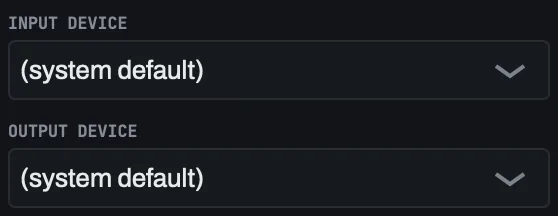
The INPUT DEVICE and OUTPUT DEVICE chips. -
You already hear yourself. Plug into input 1 and you hear it in the speakers, with nothing to arm or switch on. Inputs 2 and up start muted. Unmute the input you are playing in the mixer's
INPUTSbank (Ctrl+3). The bank starts onSHOWASSIGNED, which lists only the inputs a track records, so chooseALLto see the others. See The mixer.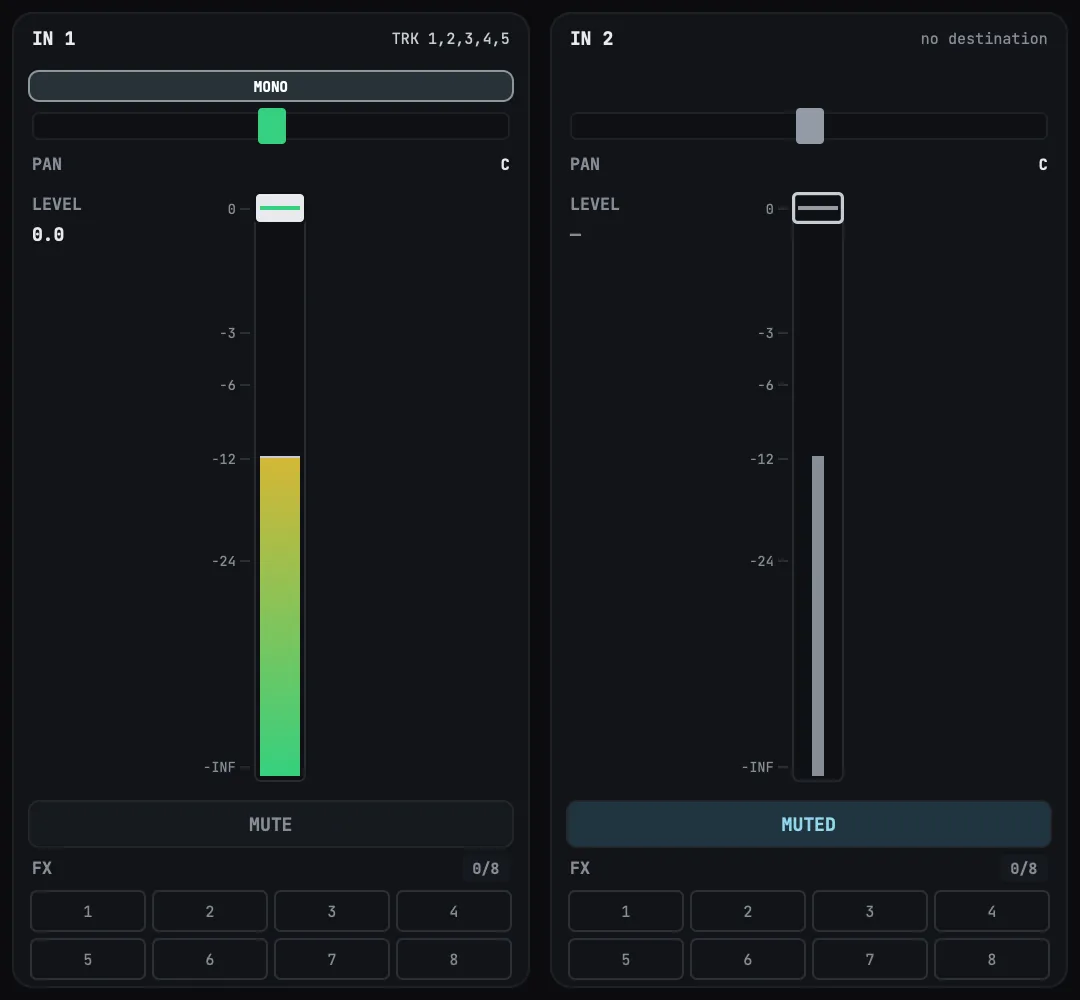
The INPUTS bank on a two-input interface, with SHOW on ALL. IN 1 is open, and IN 2 is muted. -
Choose the input a track records. Open the
TRACKtab and, underSOURCE, switch on each input the track records (IN 1,IN 2, and so on). Every track starts on input 1, so if you play one instrument into input 1, skip this step.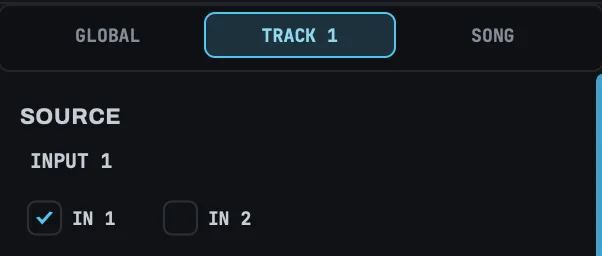
The SOURCE section of the TRACK tab. IN 1 is on. -
The first track's ring already has keyboard focus. LOOM puts it there when the window opens, so you do not have to find it.
←and→move between tracks and land on the new track's ring.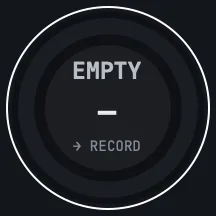
The first track's ring, with the white focus ring around it. -
Press the ring, with
SpaceorReturn, to start recording. The ring saysRECwhile it records, with→ PLAYin small type below it: your next press closes the loop and plays it.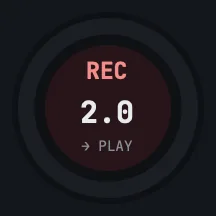
The ring while it records. The first
SpaceorReturnafter LOOM opens starts recording, because the keyboard is already on the ring. To move away from the ring, pressTabfirst. -
Press the ring again to close the loop. The track plays the take back and repeats it until you stop it. The ring now reads
PLAY, with→ OVERDUBin small type below it. The large word is the track's current state, and the arrowed word is what your next press does. See The ring for every state and what each press does.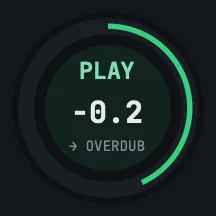
The ring once the loop is closed. -
Stop the track. From the ring, press
Tabuntil you reachSTOP. The fader,MUTEandSOLOcome before it. Once the track stops, the ring offersPLAYagain.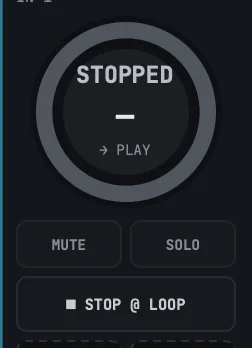
The strip after the track stops. The fader, MUTE and SOLO sit between the ring and STOP.
UNDO on that track removes the last layer. CLEAR discards the track's material, and you cannot get it back. LOOM writes your recording to disk once the loop closes. See Where your recordings live.
Screen readers: the notice line is spoken whenever its text changes. LOOM uses it to tell you that a press was refused, that the tempo moved, or that the device opened. Speech depends on
ANNOUNCE, in the side panel'sACCESSIBILITYsection, which starts on at every launch.
Where to go next
- Keyboard shortcuts — every key the window answers to.
- MIDI mapping — the notes LOOM answers, one octave per track, and what to know before you plug a controller into the same PC.
- Privacy — what LOOM collects, and what it sends.
The rest of the manual covers the window control by control, in the order you meet it on screen:
- The window — its layout, the words this manual uses, the menu bar, and what accessible means here.
- The top bar — SONG, the
MOVEset (TO TOP,ROLL,STOP), TEMPO, CLICK, the beat LEDs, FOCUS and the view switcher. - The globals row and the track strips — everything that acts on every track, and everything on one.
- The arrange view — the regions you draw, the keys that edit them, and the PERFORM buttons:
PERFORM FROM TOP,PERFORM FROM HEREandPERFORMANCE STOP. - The mixer — the banks of faders, the line that says what they address, and the effect rack: eight slots on every strip for LOOM's EQ, compressor, delay, reverb, noise gate, chorus, octave, cab, amp, tuner, transparent drive, harmony and gain, with their presets and racks.
- The side panel — the song's settings and one track's.
- The bottom rails — DEVICE, NOTICE and the status readouts.
- Dialogs — saving, replacing, opening, the at-risk warning, and the session log.
- Instrument tracks — the four tracks that loop MIDI, how you play and record them, and the editor for each instrument:
- The synth — its oscillators, filter, amp, LFOs, voice and arpeggiator, and its presets.
- The drum machine — its parts, kits, pattern grid and patterns.
- The sampler — loading a sample and playing it from the keys, and SLICE mode for chopping it into one slice per key.
- Plugins — effects and instruments from other makers: mapping, automating and macros on their controls, finding them, loading them, their presets, their memory and latency, and what happens when one is missing or crashes.
- Where your recordings live — the songs folder, the audio files in it, and how to back them up.
- Your licence — the trial, entering a licence, and what to do if LOOM will not open.
- Reporting a problem — what to send, and how to get it.
- Performance overlay — a transparent video of what the looper does in a song, to lay over your camera footage.
What this manual does not cover
- What your screen reader actually says. This manual gives the name, role and description each control passes to the accessibility layer, which is the part LOOM controls. How Windows and your screen reader present that is platform behaviour and is not described here.
- Exact pixel sizes and colours. Sizes appear only where they change what you can do.
- What each state means musically. The manual lists the ring's phases and how each one looks. What a
WAIT SWAPis for belongs in a guide to performing. - The engine's behaviour behind a control. The manual says what each control writes to, but not how the audio thread acts on it.
- The
--loom-ui-selftestand--loom-ui-snapshotcommand-line modes. These are development tools, not part of the UI. The manual mentions the self-test only where it defines what accessible means in LOOM.