
Play LOOM from your iPad.
This TouchOSC layout gives every LOOM track its own pads on an iPad: record, play, stop, undo, redo and clear, laid out like LOOM's looper view, with a tile of global controls beside them.
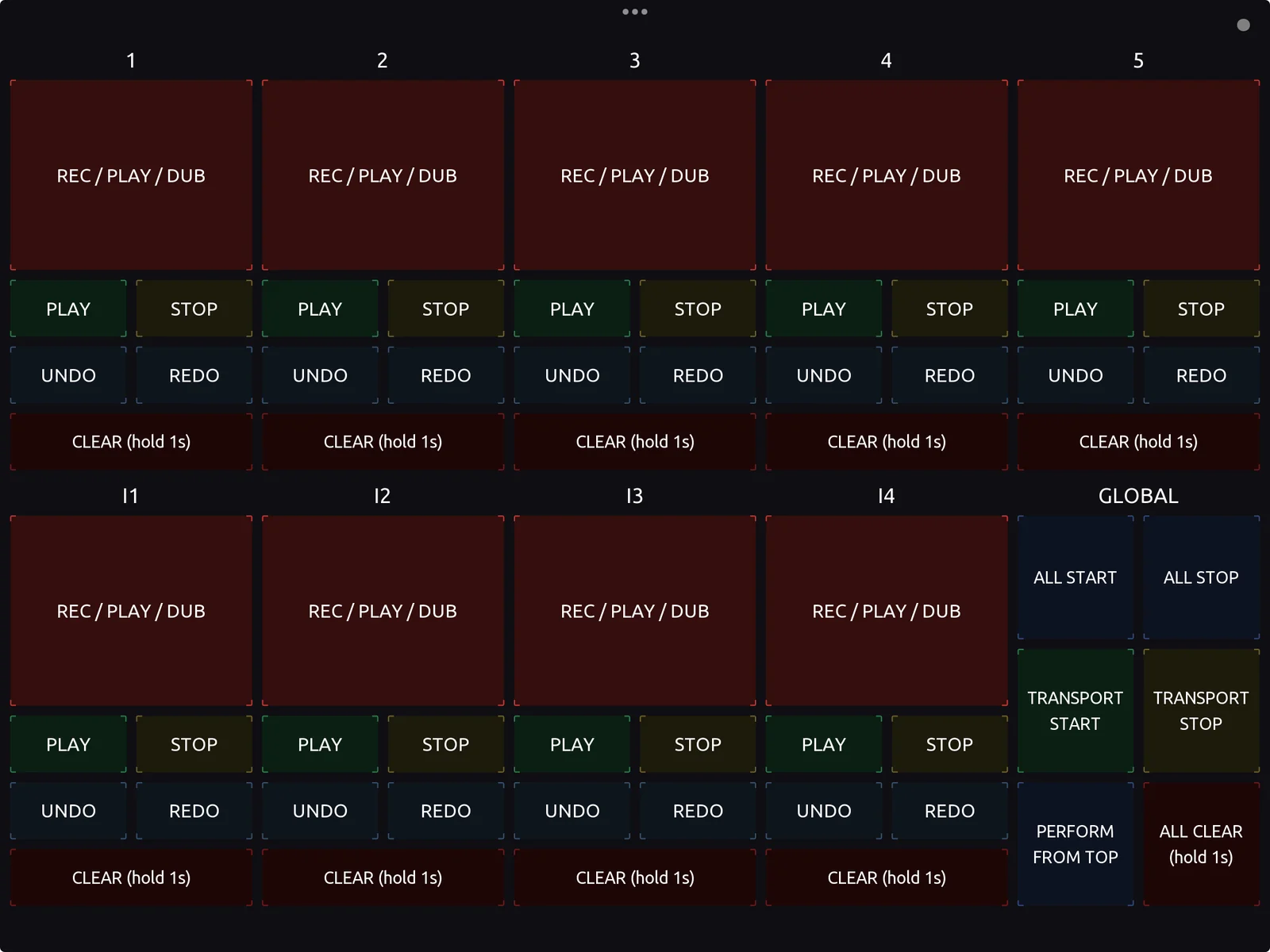
LOOM.tosc
Open it in TouchOSC on your iPad. It works with LOOM's default MIDI settings: channel 16 and the 1.x layout.
DOWNLOAD LOOM.TOSCTwo apps from hexler
TouchOSC on the iPad, a paid app. TouchOSC Bridge on the Mac running LOOM, which is free and carries MIDI between them over your network. Keep both devices on the same network.
GET TOUCHOSC BRIDGEConnect it in six steps.
- On the Mac, open TouchOSC Bridge. LOOM picks it up as a MIDI source on its own, with no setting to change. If LOOM is already open, its notice row says a MIDI device was connected.
- Send LOOM.tosc to the iPad, with AirDrop for example, and open it in TouchOSC.
- In TouchOSC, open the connections settings (the chain-link icon). Under Bridge, turn on connection 1 and set its host to your Mac.
- Under MIDI, turn on connection 1 and set its send port to <Bridge 1>. This is the step people miss: the Bridge connection sends nothing until a MIDI connection uses it.
- Leave the editor so TouchOSC is in play mode.
- Tap track 1's REC / PLAY / DUB pad and watch the MIDI readout on LOOM's bottom rail. It should read 16 · N0 · 127 ✓, and track 1 starts recording.
What each pad does.
- REC / PLAY / DUB does what the track's ring does: records an empty track, closes the loop, overdubs a playing track, and plays a stopped one.
- PLAY and STOP play and stop that track on its own quantize setting.
- UNDO and REDO take the last layer off the track and put it back.
- CLEAR clears the track when you hold it for one second. A short tap does nothing, so a stray touch cannot lose a take.
- The GLOBAL tile has ALL START, ALL STOP, TRANSPORT START, TRANSPORT STOP, PERFORM FROM TOP, and ALL CLEAR (also a one-second hold).
The pads follow LOOM's built-in MIDI layout, which the LOOM manual lists in full on its MIDI mapping page. A hardware pad controller set to the same notes does the same things.
Read the MIDI readout.
- It still shows a dash. No MIDI is reaching LOOM. Check that MIDI connection 1's send port is <Bridge 1>, that the Bridge connection is on with your Mac as its host, and that TouchOSC Bridge is running on the Mac.
- The line ends in a dot instead of a tick. LOOM hears the iPad but the note is not one of its commands. In LOOM's side panel, set MIDI CH to 16 and MIDI MAP to 1.x layout.
LOOM for Windows is on its way. TouchOSC Bridge runs on Windows too, and this page will cover it when LOOM for Windows ships.