Use an iPad as a MIDI Controller for Live Looping with TouchOSC
A hardware pad controller is the usual way to run a software looper by hand. If you have an iPad, you may not need to buy one. TouchOSC, an app from hexler, turns an iPad screen into a MIDI control surface, and a layout built for LOOM gives you a pad per track and a mixer, with nothing to map.
The iPad has one thing most cheap pad controllers do not: it can show you what each track is doing. LOOM sends each track's state back to the iPad, so the pads read RECORDING, PLAYING or STOPPED in LOOM's colours.
You can download the layout, LOOM.tosc, for free from the LOOM TouchOSC page.
What the layout gives you
The layout has two pages.
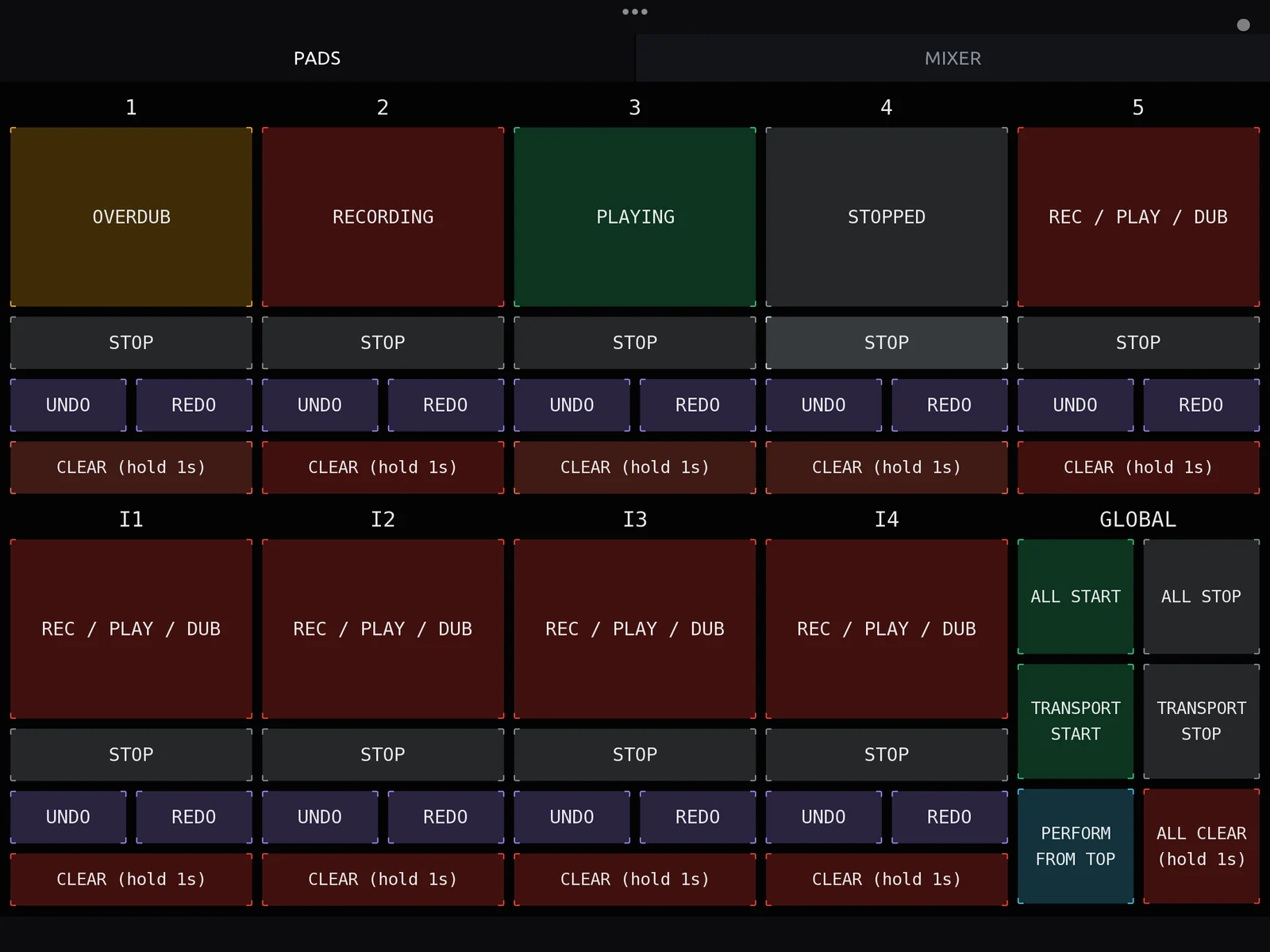
PADS has a tile for each of LOOM's five audio tracks and four instrument tracks, laid out like the looper's rows, and a GLOBAL tile:
REC / PLAY / DUBdoes what the track's ring does: it records an empty track, closes the loop, overdubs a playing track and plays a stopped one. That is why the layout has no separate play or overdub pad.STOPstops that track.UNDOandREDOtake the last layer off the track and put it back.CLEAR (hold 1s)clears the track only when you hold it for a second. A tap does nothing, so a stray touch cannot lose a take.GLOBALhasALL START,ALL STOP,TRANSPORT START,TRANSPORT STOP,PERFORM FROM TOP, andALL CLEAR, which also needs a one-second hold.
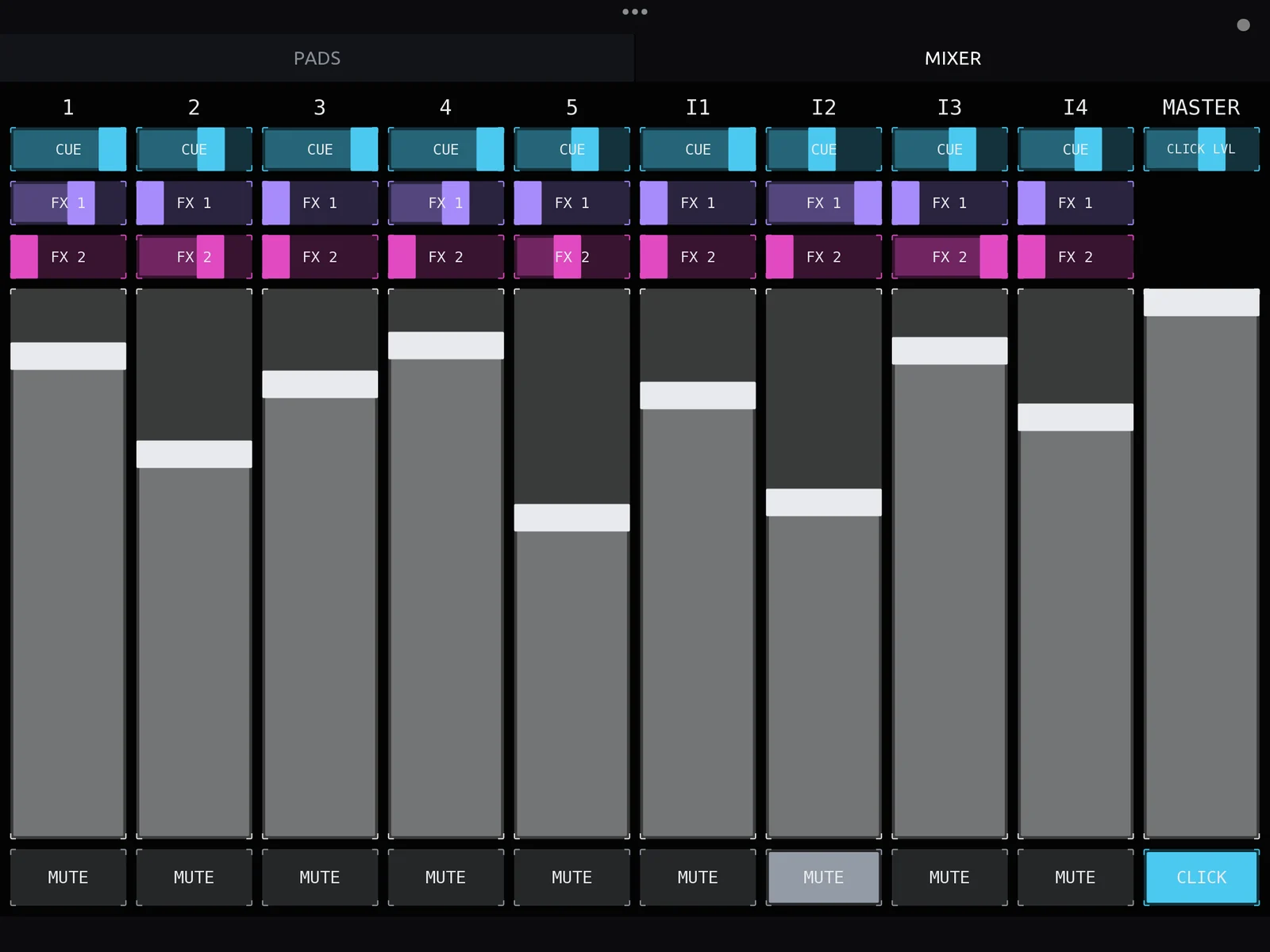
MIXER has a strip for each track, with CUE, FX 1 and FX 2 send faders, a level fader and MUTE, and a MASTER strip with the click level, the master level and the click on and off.
Both pages send the notes and controller numbers of LOOM's built-in MIDI layout, so there is nothing to map in LOOM. A hardware controller set to the same numbers does the same things; live looping on a Mac with a MIDI foot controller lists them.
What you need
- TouchOSC on the iPad. It is a paid app from hexler.
- TouchOSC Bridge on the Mac that runs LOOM. It is free from hexler, and it carries MIDI between the iPad and the Mac over your network.
- The layout file,
LOOM.tosc, from the LOOM TouchOSC page. - The iPad and the Mac on the same network.
Connect the iPad to LOOM
- On the Mac, open TouchOSC Bridge. The Mac sees it as a MIDI source named
TouchOSC Bridge, and LOOM listens to it with no setting, as it does every source. If LOOM is already open, its notice row says a MIDI device was connected. - Send
LOOM.toscto the iPad, with AirDrop for example, and open it in TouchOSC. - In TouchOSC, open the connections settings (the chain-link icon). Under Bridge, turn on connection 1 and set its host to your Mac.
- Under MIDI, turn on connection 1 and set both its send port and its receive port to
<Bridge 1>. This is the step people miss. The Bridge connection carries nothing until a MIDI connection uses it, and the receive port is what lets LOOM light the pads. - Leave the editor, so TouchOSC is in play mode.
- Tap track 1's
REC / PLAY / DUBpad and watch theMIDIreadout on LOOM's bottom rail. It should read16 · N0 · 127 ✓, and track 1 starts recording. - In LOOM's side panel, under
MIDI, setMIDI OUTtoTouchOSC Bridge. The pads now show each track's state, and the faders move to LOOM's values.
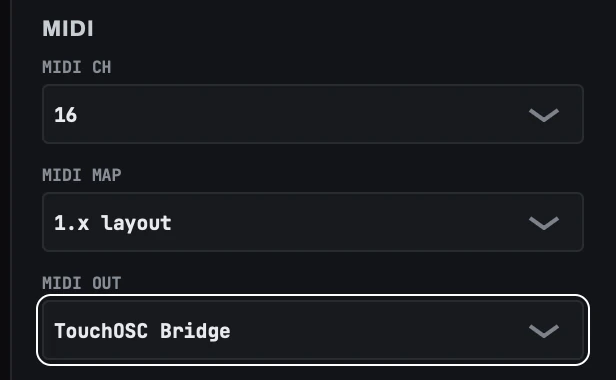
The layout sends on channel 16 in LOOM's 1.x layout, which are LOOM's defaults. If you changed MIDI CH or MIDI MAP in the side panel, set them back.
How the pads and faders follow LOOM
With MIDI OUT set, LOOM sends the iPad each track's state whenever it changes. A REC / PLAY / DUB pad reads RECORDING, PLAYING, OVERDUB or STOPPED in LOOM's colours, and a waiting state such as PLAY... while the track waits for the bar. UNDO and REDO light when there is something to undo or redo.
The faders follow LOOM too. When you set MIDI OUT, and whenever you open a song, LOOM sends every level, send and mute, so the faders move to where LOOM's controls are. If automation or the mouse moves a level, the iPad's fader moves with it.
When you open the layout, the levels, CUE, the master and the click level start at the top, which is unity, and FX 1 and FX 2 start at the bottom. In LOOM's default PICKUP mode, if a fader is not where LOOM's control is, moving it does nothing until it reaches LOOM's value, and then the control follows it. That keeps a level from jumping. With MIDI OUT set, the faders already sit at LOOM's values, so your first move takes over.
If nothing happens
LOOM's MIDI readout, on the bottom rail, shows the last message it received. Read it after you tap a pad:
- It still shows a dash. No MIDI is reaching LOOM. Check that MIDI connection 1's send port is
<Bridge 1>, that the Bridge connection is on with your Mac as its host, and that TouchOSC Bridge is running on the Mac. - The line ends in a dot instead of a tick. LOOM hears the iPad, but the message is not one of its commands. In LOOM's side panel, set
MIDI CHto 16 andMIDI MAPto1.x layout. - The pads work but never change colour. Set
MIDI OUTtoTouchOSC Bridgein LOOM, and set MIDI connection 1's receive port to<Bridge 1>in TouchOSC.
For a list of every message LOOM receives and what it did with each one, open View › MIDI Mapping and read the monitor on the right.
Going further: map the iPad to anything
The layout covers the looper and the mixer. If you build your own TouchOSC controls, or add to this layout, you can send them to any other control in LOOM, such as a synth's cutoff or the next preset in an effects rack, with LOOM's MIDI Mapping window. Choose the control in LOOM, move the TouchOSC control, and press USE. The MIDI mapping tutorial shows how, and LOOM sends each mapping's value back to the iPad as well.
Frequently asked questions
Is the LOOM TouchOSC layout free?
Yes. Download LOOM.tosc from the LOOM TouchOSC page. TouchOSC itself is a paid app from hexler, and TouchOSC Bridge is free.
Do I need to map anything in LOOM?
No. The layout sends the notes and controller numbers LOOM answers by default. Set MIDI OUT to TouchOSC Bridge so the pads show each track's state.
Does it work over Wi-Fi?
Yes. TouchOSC Bridge carries MIDI between the iPad and the Mac over your network, so both need to be on the same one.
Does it work on Windows?
LOOM for Windows is not out yet. TouchOSC Bridge runs on Windows too, and the TouchOSC page will cover it when LOOM for Windows ships.
Get the LOOM keyboard shortcuts.
Every key LOOM answers to, in a light version for printing and a dark one for your screen. You’ll also get an email when there’s a new tutorial or release. Unsubscribe any time.