 LOOM
LOOMLOOM has five dialogs: Save song, Replace a saved song, the at-risk warning (which appears before three different gestures), Open song and the session log. They all work the same way.
Keys are in Keyboard shortcuts.
How every dialog behaves
Nothing stops while a dialog is open. The loops keep playing, the clock keeps running, and the audio engine is untouched. The destructive dialogs say so in a banner across the top:
Still playing. Nothing stops until you choose - the clock keeps running behind this dialog.
When every track the dialog lists is stopped, the banner is grey and reads:
Every track is stopped. Nothing changes until you choose.
The dialog takes every key except Esc and Tab, so the window behind it does not act on keys meant for the dialog. For example, ← and → do not move the focused track while you type a song name. Tab cycles inside the dialog and never reaches the window behind.
Clicking outside a dialog does nothing: it does not cancel and it does not beep. To leave a dialog, press Escape or choose Cancel.
In every LOOM dialog, the keyboard starts on the safe option, never on the destructive one.
While a dialog is open, the menu bar is greyed out and none of its shortcuts work.
Every dialog has a stable name that does not change with its state. It also has a description that says the whole card in one sentence, because the card's headings and paragraphs are painted text. A screen reader speaks that sentence when the dialog appears.
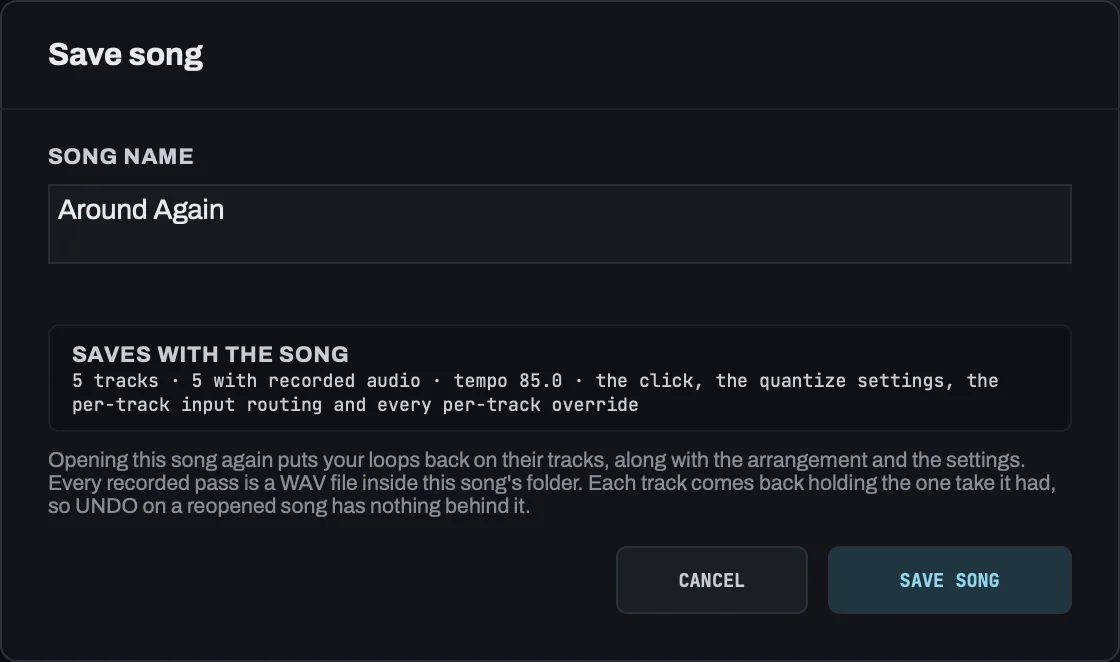
Save song
Opens when you press ⌘S on an unnamed song, whenever you press ⇧⌘S, and when a save is refused.
| Control | What it does |
|---|---|
| The name field | The name the song is saved under. It is stored in the file exactly as you type it, spaces and all. The file's name on disk is made filename-safe separately. |
SAVES WITH THE SONG |
A summary of what the file will contain. |
| The disclaimer | What is saved, and what comes back when you open the song again. Its text is quoted below. |
CANCEL |
Closes the dialog and writes nothing. |
SAVE SONG |
Writes the song. |
Type a name, then press Return to save or Escape to cancel. Tab moves from the field to cancel to save, so when you are in a hurry, one Tab from the field reaches cancel. The keyboard starts in the name field with the existing name selected, so on a named song ⇧⌘S and then Return saves it again under the same name.
If a save is refused, the reason appears under the field, beside the thing you would change, rather than only on the notice line behind the dialog. The dialog itself refuses an empty name: A song needs a name. Type one and press Return. After a refusal the caret is back in the name field, so you can type straight away even if you clicked SAVE SONG with the mouse.
The disclaimer says:
Opening this song again puts your loops back on their tracks, along with the arrangement and the settings. Every recorded pass is a WAV file inside this song's folder. Each track comes back holding the one take it had, so UNDO on a reopened song has nothing behind it.
When you open a saved song, LOOM reads each track's recording from the song's takes/ folder and puts it back on that track bit for bit. You get the same 32-bit float samples you played, not a re-render of them. A track you had cleared comes back empty, because the song says that track holds nothing.
On a song you have just opened, UNDO has nothing to go back to. Each track comes back holding only the take it held when you saved, not the generation behind it, so UNDO on a loaded track does nothing. Anything you record after opening can be undone as usual.
If a recording will not load, only its own track is affected. A take recorded at a sample rate other than the one this session runs at, or with a channel count a LOOM track cannot hold, is left out rather than played at the wrong speed. That track opens empty and the rest of the song opens.
The dialog's accessible name is Save song. The field is named Song name, CANCEL is named Cancel saving this song, and SAVE SONG is named Save song.
LOOM writes recorded audio into the song's folder as you perform, so there is no bounce step and nothing to switch on. A pass you are still playing reaches the folder when it closes. See Where your recordings live.
Saving under a new name gives you two complete songs. LOOM copies the recorded audio into the new song's folder and leaves the song you saved from as it was, so you can open either one and play it. See Saving a copy of a song.
Replace a saved song
Opens when the name you typed matches a song that is already saved. It is the standard macOS replace question, asked once, over the save dialog.
| Button | What it does |
|---|---|
Cancel - type a different name |
Closes this question and puts the save dialog back with the name you typed still in it, so you can change it. |
Replace and delete what is saved there |
Deletes everything in the saved song's folder, including the arrangement, the settings and any recorded takes, and writes this song there instead. |
Escape cancels. Tab moves from cancel to replace. The keyboard starts on cancel.
As everywhere in LOOM, the red button is last and never has the keyboard when the dialog opens.
Replacing deletes the whole folder, recursively, and the recorded takes with it. Only the document's previous copy survives: a few kilobytes with no audio in it. Nothing stops playing.
The dialog's accessible name is Replace a saved song. The song's name appears in the drawn headline but not in any accessible name. The two buttons are named Cancel replacing, and go back to the name and Replace the saved song.
The at-risk warning
The same card appears before New Song, before a device change, and before opening another song, but only when something is actually at risk.
The heading counts the tracks at risk: 4 tracks still hold audio, or 1 track still holds audio for one.
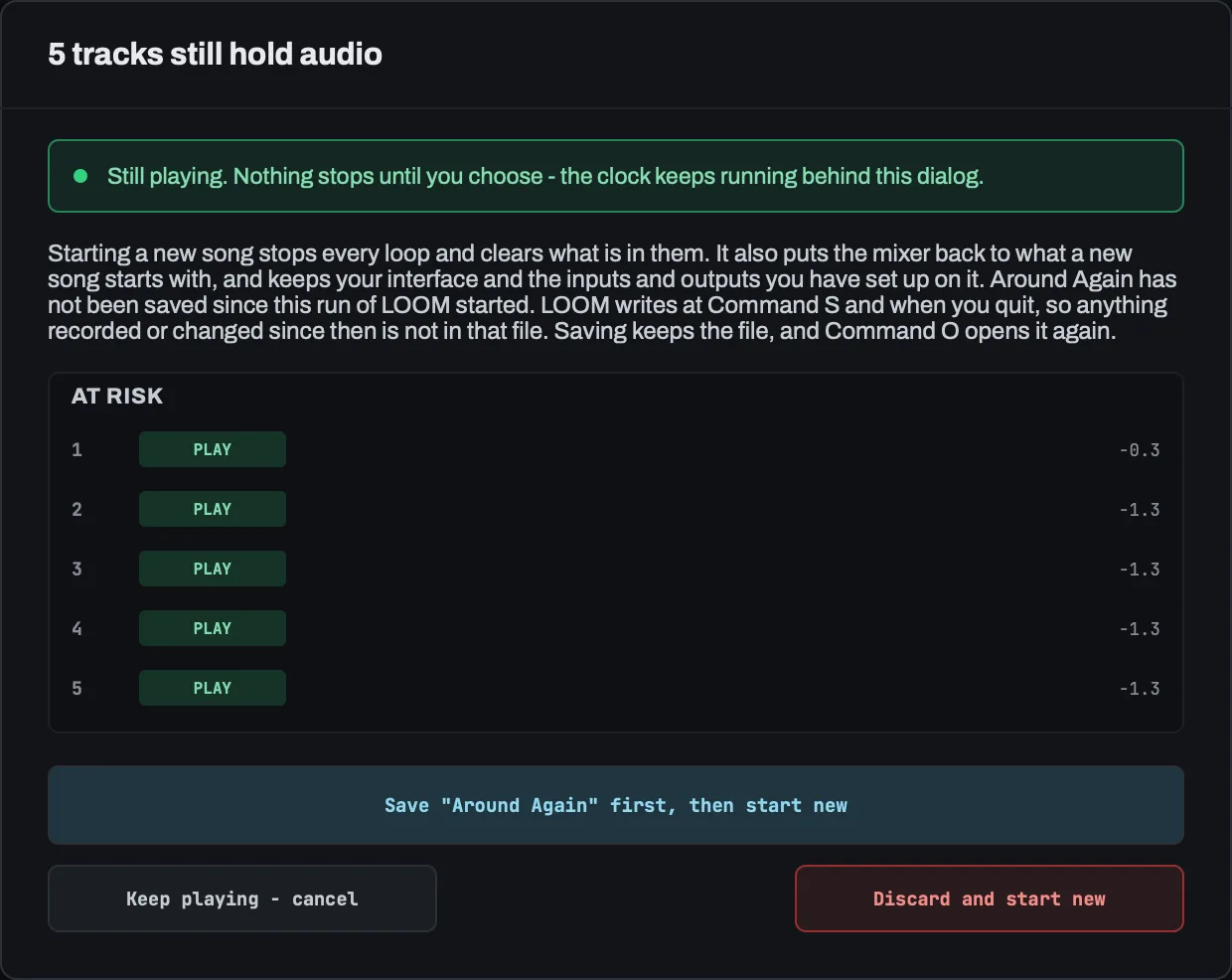
| Part | Content |
|---|---|
| Banner | Still playing. Nothing stops until you choose - the clock keeps running behind this dialog. when a listed track is playing, recording or waiting to. Every track is stopped. Nothing changes until you choose. when every listed track is stopped. |
| Body | What this gesture does and what survives it. |
AT RISK list |
One row per track: its number, its state word in a coloured chip, and the same countdown the ring is drawing at that moment. |
| Three buttons | Safe, neutral, destructive. |
| Button | Position | What it does |
|---|---|---|
| Save "…" first, then … | First, coloured, has the keyboard | Saves, then performs the gesture. On an unnamed song it opens the save dialog first. If you cancel the naming, the whole gesture is cancelled and nothing is cleared. |
| Keep playing - cancel | Middle, neutral | Changes nothing. Escape does the same. When every track at risk is stopped, it reads Cancel. |
| Discard and … | Last, red | Performs the gesture and loses the loops. |
Tab moves from the primary button to cancel to the destructive button.
If nothing is at risk, LOOM does not ask. With five empty tracks, a device change takes one click, and ⌘N and ⌘O act immediately.
What each gesture says:
- New song. Starting a new song stops every loop, clears them, and resets the mixer to how a new song starts: the faders, pans, mutes, solos, sends, input strips, buses, the master, the click and every effect chain. The tempo returns to 120 bpm and the meter to 4/4. If the transport is rolling when you press it, LOOM keeps the tempo and meter you are playing at and says so on the notice line; to reset them, stop the transport and press again. Your interface is kept: the devices, the sample rate, which inputs each track records from and which outputs carry the mix. Those belong to your rig, not to the song. The input strips return to their starting state, with input 1 open and every other input muted. The arrangement is emptied and any running performance ends. See A new song empties the arrangement and What a new song resets.
- Device change. Changing the interface builds a new audio engine, and the recorded loops do not survive it. The rig does: LOOM captures and restores the tempo, the click and where it goes, both count-ins, the quantize points, the track count, which strip has focus, every track's input routing, and the mixer's input levels and mutes. If you cancel, the chip goes back to the device it named before, and the cancel button names that device.
- Open song. Opening a named song clears every loop first, because LOOM holds one song at a time. This is the only one of these cards that names the song being opened. The song list comes first and choosing a row changes nothing, so LOOM can ask which song before it asks whether.
LOOM writes the song at ⌘S and when you quit, and at no other time, so anything recorded or changed since the last save is not in that file. The card says so and tells you how to get back to it: Saving keeps the file, and Command O opens it again.
On a song you have not named, the card says where the audio already is. LOOM records into a folder of its own in your LOOM songs folder, under a name that starts with Untitled, so your takes are files on your disk before you save anything. The card says how much of that is still there: the take each track holds and the one UNDO goes back to. Saving and quitting delete the passes behind those two. A pass you are still playing is not on disk, and the gesture loses it. On an unnamed song, what the card puts at risk is the arrangement and the track settings, which LOOM writes at ⌘S and when you quit. Naming the song moves the takes into the named folder rather than copying them. See Where your recordings live.
The card's accessible name is Start a new song, Change audio device or Open another song. The names stay the same whatever is at risk and contain no count. The count and the whole at-risk list reach a screen reader through the description, because the rows are painted text. Each button has its own name and its own sentence saying what it does and what survives it.
The red button acts on a single press. There is no hold on it, because the dialog is already the safeguard.
Open song
Opens when you press ⌘O. It lists your saved songs, drawn in the window rather than in a native Open panel.
The list is in the window because a mapped footswitch press can reach it and cannot reach a native panel. The list also shows each name as you typed it: the filename on disk is sanitised, and the name itself is stored inside the file.
The dialog has a counted heading (4 songs in your LOOM songs folder, singular for one song, and No songs saved yet for none), then one button per song, then Cancel.
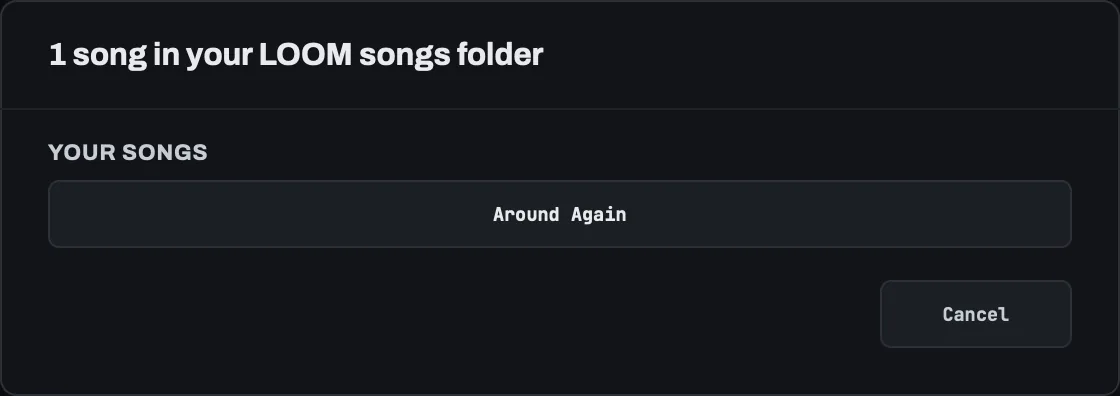
↑ and ↓ move between the songs, and Return opens the one you are on. Tab and ⇧Tab move the same way and also reach the cancel button at the end. Esc closes the list and changes nothing.
The arrows move the keyboard focus in the same order as Tab, and the focused row is the selection: Return opens the row with the visible focus ring. The keyboard starts on the first row.
The card grows with the number of songs up to eight rows, and after that the list scrolls. Moving the focus scrolls it, so you can tab through forty songs without doing anything else.
A song that cannot be read is still listed, in its usual place, and you can still press it. It is drawn dimmer. Pressing it tells you what is wrong with the file and changes nothing.
The dialog's accessible name is Open song. Each row is a button named Open song <name>, so you can reach the whole list with Tab and each row reads as what it is. The mark for an unreadable song is drawn beside the name but is not part of it; it is in the description instead. The dialog's description gives the count, how to move, that nothing stops playing until you choose, and how many songs in the list could not be read. Cancel is named Close the song list.
Choosing a row changes nothing on its own. If any track holds something, the at-risk warning opens over the list and names the song you picked. Otherwise the song opens straight away.
Session log
Opens from View ▸ Show Logs, with ⇧⌘L, or with the LOG control at the right-hand end of the notice line. See The bottom rails. All three open the same overlay.
LOOM records every message it puts on the notice line at the bottom of the window. This overlay shows that record for the current session, newest first, with the time each message appeared.
Use it when a message went past before you could read it, or when you want to check what LOOM said about something earlier in the set.
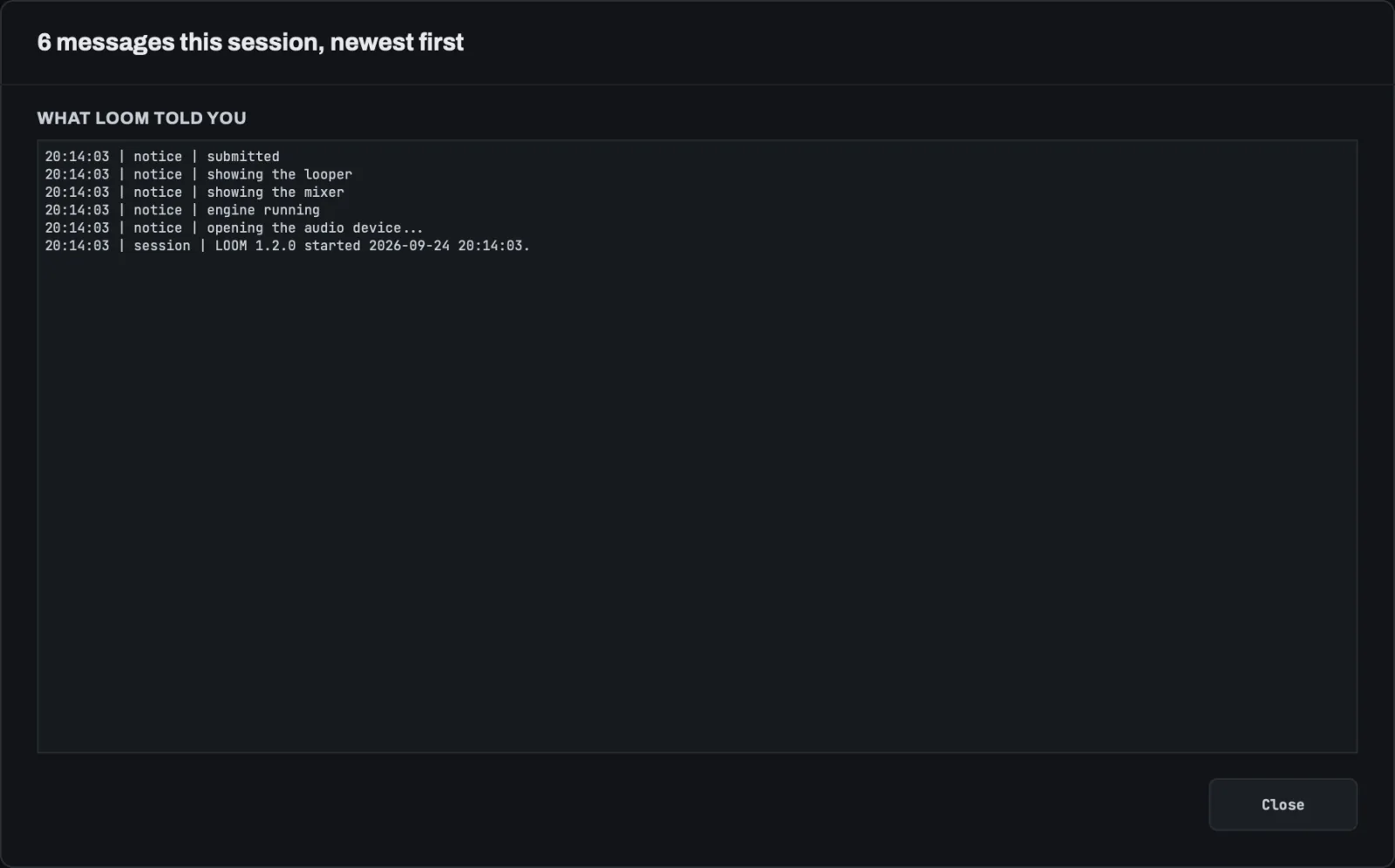
The overlay has a counted heading (42 messages this session, newest first, singular for one message, and Nothing recorded this session yet for none), then the log, then Close.
Each line reads time | kind | message. The kind is notice for a message from the notice line and session for a message about the log itself, such as the line LOOM writes when it starts.
A message that repeats appears once. LOOM records a line when the notice line changes, so the log shows what you saw, in the order you saw it.
The log is a snapshot. It is filled when you open it and does not update while it is open, so a message that arrives afterwards is not in the list. To see everything up to now, close the log and open it again. Nothing is lost: LOOM keeps writing the record behind the overlay.
Moving through the log:
| Key | What it does |
|---|---|
↑ ↓ |
Moves one line. |
Page Up Page Down |
Moves one screen. |
⌘↑ ⌘↓ |
Goes to the newest message, or the oldest. |
⌘A |
Selects the whole log. |
⌘C |
Copies what is selected. |
Esc |
Closes the log. |
Hold Shift with any of the movement keys to select as you go.
Drag across the log to select part of it, and double-click to select a word. ⌘C copies the selection; ⌘A then ⌘C copies the whole log. Right-click for the same commands in a menu. To quote a line in an email without sending the whole report, copy it from here.
The log cannot be edited. Typing, pasting and deleting do nothing.
Nothing is sent. Reading the log makes no network connection, and neither does copying from it. See Privacy. To send the record to the person who makes LOOM, use Report a problem, which writes it to a file you attach yourself.
The log covers the session you are in. The previous session is kept as a file and is included in a problem report; see Reporting a problem. If LOOM stopped unexpectedly last time, the first thing in this log says so.
The dialog and the log inside it are both named Session log. The description says how many messages there are, what they are, which keys move through them, and that nothing is sent. Close is named Close the session log.
Record setup
Opens from File ▸ Record Setup… or with ⌥⌘R.
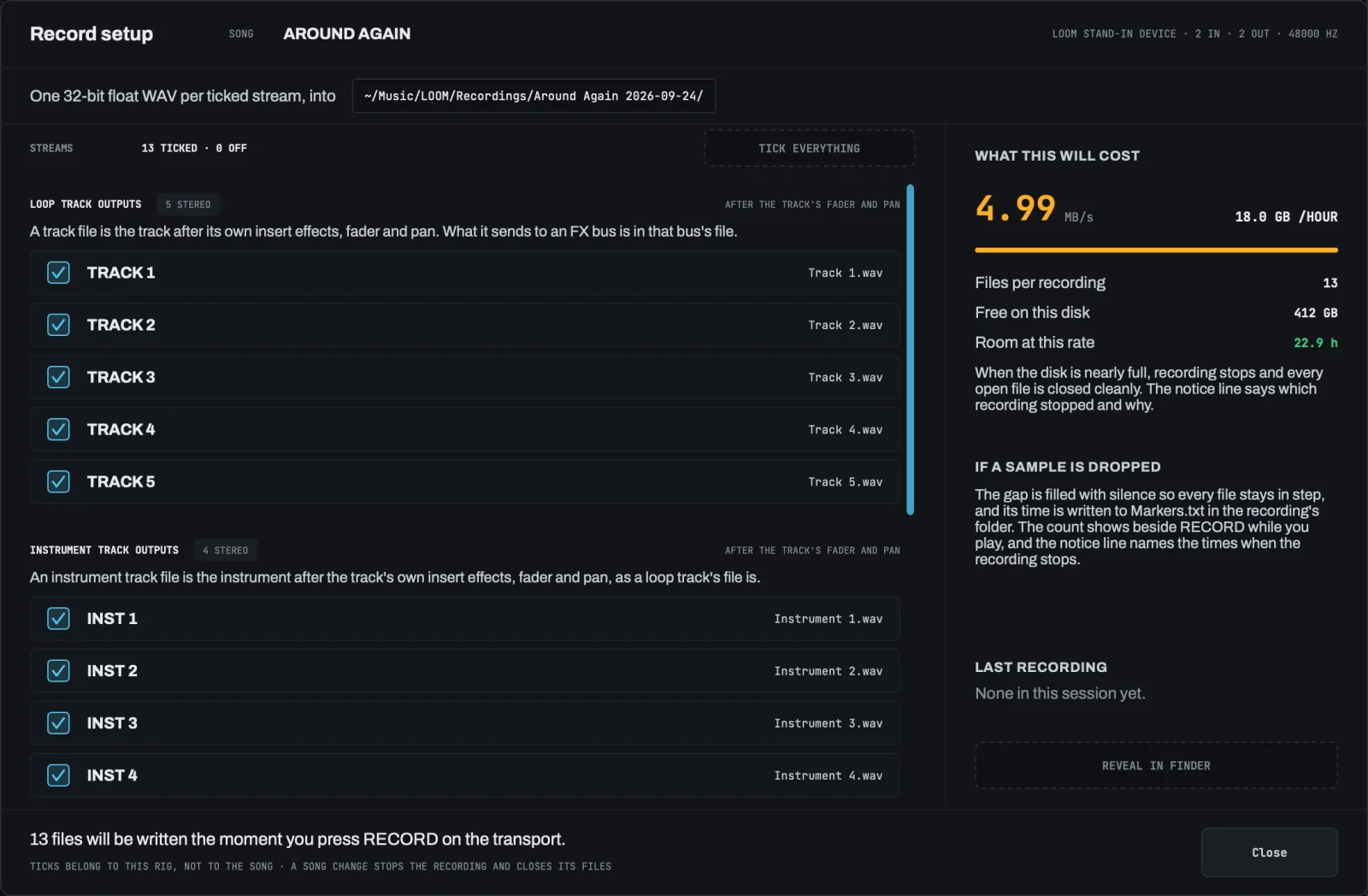
This sheet chooses which streams RECORD on the transport writes, and shows what they cost on disk. It has no record button of its own. What you tick takes effect the next time you press RECORD. See RECORD.
What you tick belongs to this rig, not to the song. LOOM keeps your ticks on this Mac, so they are the same in every song you open. Ticks are kept by track position: a tick on TRACK 7 waits for a song that has a seventh track, and a song with fewer tracks records nothing for it. The sheet lists such ticks under the track list. Every song has every instrument track, so a tick on an INST row always records.
The streams. Each row is one stereo WAV file, and its file name is on the right of the row.
| Section | What the file holds |
|---|---|
LOOP TRACK OUTPUTS |
One loop track after its own insert effects, its fader and its pan. What it sends to an FX bus is in that bus's file, not in the track's. |
INSTRUMENT TRACK OUTPUTS |
One instrument track after its own insert effects, its fader and its pan, taken at the same point as a loop track's file. Instrument 1.wav is INST 1. |
FX BUS OUTPUTS |
One bus after its effects and its mute and solo, before its return level. The first row is the CUE bus. |
MAIN MIX |
The main mix after the master fader. The click is not in it. |
GROUPS |
One file per group, Group 1.wav for group 1. A group sums its sources into one stereo file. |
TICK EVERYTHING ticks every row. To tick or untick a row, press it, or move to it and press Space.
Groups. Each group on this rig is one row: its number, LIVE or PLAYBACK, the sources it holds, and its file name. RECORD writes a group's file only when its row is ticked. A group whose sources are all missing from this interface and this song reads NOTHING HERE TO RECORD. Its tick is kept, but it writes no file until you are on a rig and in a song that have its sources. With no groups on the rig, the section says so.
You cannot make or change groups in this sheet. The MIXER › MASTER › ROUTING button under the group rows closes the sheet and opens the page where you can. See Groups: the ROUTING page.
The folder line shows where the next recording goes: a new folder in ~/Music/LOOM/Recordings, named for the song and today's date. Every file is 32-bit float WAV at your interface's sample rate. LOOM does not offer another format.
The device line at the top right names your interface, its inputs and outputs, and the sample rate the cost is worked out at.
What this will cost.
| Figure | Means |
|---|---|
MB/s and GB /HOUR |
How fast the ticked streams fill the disk. Amber above 4.4 MB/s. |
| Files per recording | How many files one recording makes. |
| Free on this disk | The free space on the disk that holds your recordings folder. |
| Room at this rate | How many hours of recording the free space holds. Amber under two hours. |
When the disk is nearly full, the recording stops, every file is closed cleanly, and the notice line says so.
Last recording names the last recording made in this session: its folder, its number of files, its length and its gaps. REVEAL IN FINDER opens its folder.
The footer says how many files the next recording writes, and reminds you that a song change stops a recording.
Close or Esc closes the sheet. Your ticks are already kept.