 LOOM
LOOMThis chapter and the ones after it describe the LOOM window control by control, in the order you meet things on screen: this page, then the top bar, the globals row and the track strips, the arrange view, the mixer, the side panel, the bottom rails and the dialogs.
Keys are not repeated here. Every key LOOM answers is listed in Keyboard shortcuts.
The shape of the window
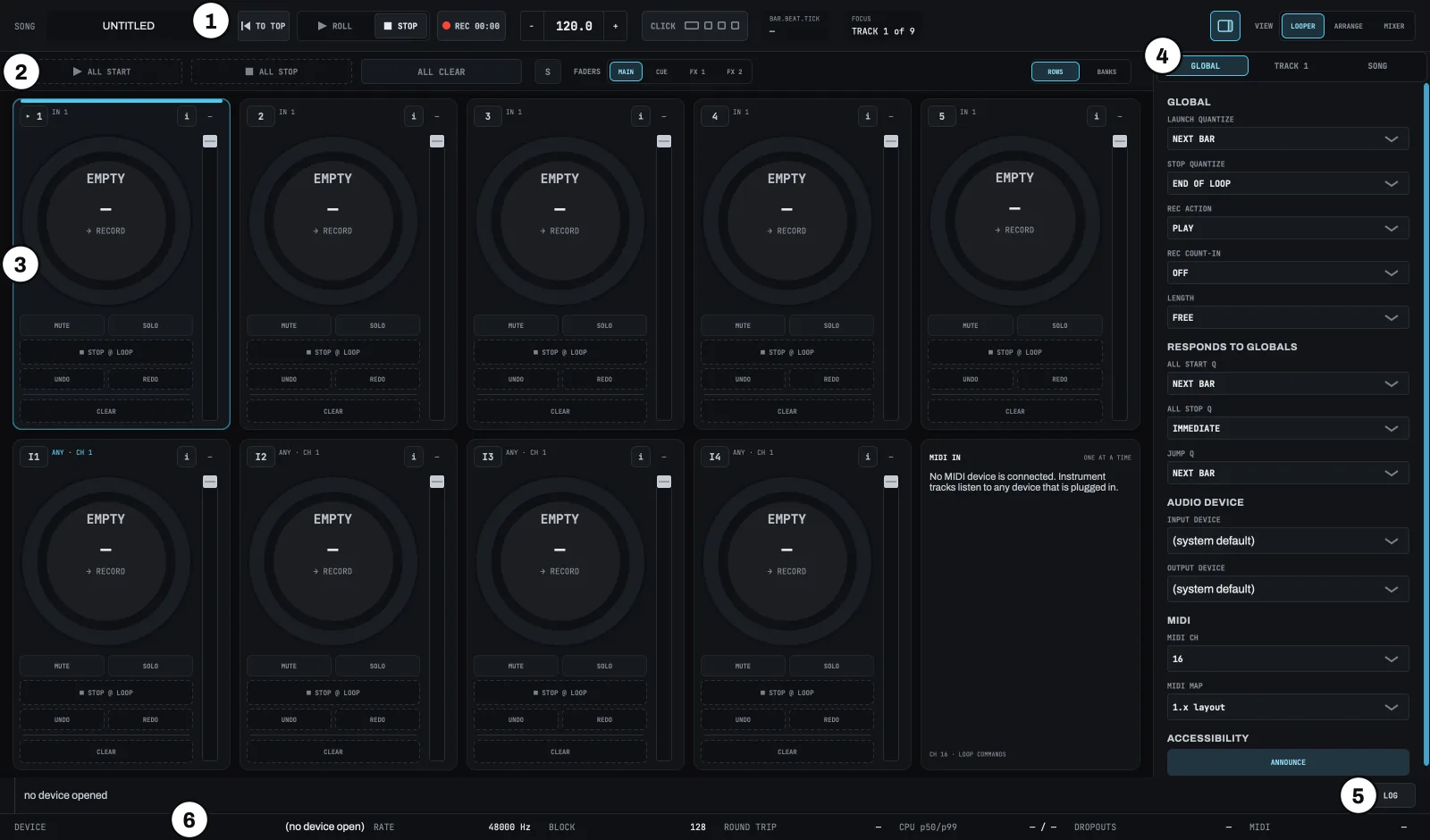
The window is called LOOM. It opens at 1600 × 940, and you can drag it between 1180 × 760 and 3600 × 2400. These sizes are the area under the title bar.
| Number | What it marks |
|---|---|
| 1 | The top bar |
| 2 | The globals row, in the looper view |
| 3 | A track strip |
| 4 | The side panel |
| 5 | The notice row |
| 6 | The status rail |
From top to bottom, the window has four bands:
| Band | Height | What is in it |
|---|---|---|
| Top bar | 58 px | SONG, the MOVE set (TO TOP, ROLL, STOP), TEMPO, CLICK, the beat LEDs, BAR.BEAT.TICK, FOCUS, the panel toggle, and the view switcher at the right end |
| Body | the rest | One of the three views: the looper, the arrange view, or the mixer |
| Notice row | 40 px | NOTICE across the width, and LOG at the right-hand end |
| Status rail | 30 px | DEVICE, RATE, BLOCK, ROUND TRIP, CPU, DROPOUTS, MIDI |
The top bar and both bottom bands are on screen in every view. Only the body changes, so switching views never moves the transport, the tempo, or the line that tells you what just went wrong.
In the looper view the body is a globals row (2) across the top, the track strips under it (3 marks the first), and a 310 px side panel (4) down the right edge. When the side panel opens, the strips get narrower to make room for it, so the panel never covers them.
The looper draws a strip for every audio track and every instrument track. In the ROWS layout, the default, the audio tracks fill the top row and the instrument tracks the row under it. See Instrument tracks.
At the window's minimum width the top bar runs out of room: BAR.BEAT.TICK truncates and FOCUS gets no width at all. The view switcher keeps its full width at every size.
The type
LOOM draws its own text in two typefaces, and the typeface tells you what kind of text you are looking at. The rule is whether the text is measured or read. A value that changes, and the label naming its control, are set in the monospaced face, so a column of them lines up and nothing shifts sideways when a number gains a digit.
| Typeface | What it carries |
|---|---|
| Archivo | Anything you read as language: song names, device names, the notice line and the text of dialogs |
| JetBrains Mono | Anything the machine owns or names: numbers, decibels and times, the small uppercase labels that name a control — the words on buttons, on tabs, and above each setting — and a setting's uppercase value, such as NEXT BAR |
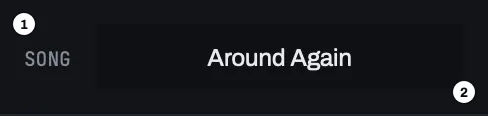
| Number | What it marks | Typeface |
|---|---|---|
| 1 | The label, SONG |
JetBrains Mono |
| 2 | The song's name | Archivo |
Both typefaces ship inside the application. LOOM does not use the fonts installed on your Mac, so the window looks the same on every machine and on every version of macOS. It does not fetch a font either. See Privacy.
This manual is set in the same two typefaces: its body text is Archivo, and text like this is JetBrains Mono.
Words this manual uses precisely
| Word | What it means |
|---|---|
| Press | You press a key, a button, or the ring. |
| Turn | You change a chip — the dropdown-shaped settings in the side panel. |
| Select | You choose a value from a list or a segmented row. |
| Strip | One vertical track column in the looper view. |
| Focused track | The track that the focused-track verbs and the i panel act on. Exactly one track is focused at a time. |
| The notice line | The one-line readout at the bottom left, where every refusal appears. |
| Dead face | A control that cannot act right now, drawn with a dashed border instead of a solid one. Most dead controls also change their word to say why. The looper view's five verbs — ALL START, ALL STOP, ALL CLEAR, and each strip's ■ STOP and CLEAR — keep their word instead and put the reason on the notice line when you press them. |
Two rules worth knowing before the rest
A control claims only the pixels it acts on, not the whole rectangle it was laid out in. On a track strip, a press on any pixel that is not a live control focuses that track. The ring claims a disc. The fader claims its travel well, not the empty column around it. A control wearing a dead face usually claims nothing at all, so a press aimed at it selects the track underneath.
The looper view's five verbs are the exception. They keep their word when they cannot act, so you read and press them as controls. So they claim their pixels, and a press on one puts the reason on the notice line instead of selecting the track under it.
Colour alone never shows whether a control can act. Every dead control changes the shape of its border, which you can see without colour, and most also change their word. A screen reader gets the change in the description. A control's name stays the same whether or not it can act.
The menu bar
LOOM draws three menus: File, View, then Transport. File holds the four song commands with a separator between Open Song… and Save, then Record Setup… between two more separators, then the help section: User Guide and Report a Problem. View holds the three views as a radio group. The view you are in has a check mark, so the menu shows the current view as well as changing it. Below a separator is Show Logs, which is not a view and is not ticked. Transport holds Stop Transport and Stop Focused Track.
User Guide (⌘/) opens this manual. It is a PDF that ships inside LOOM, so it opens in Preview or whichever app your Mac uses for PDFs. LOOM makes no network request to fetch it. The second separator marks it as a help item rather than a fifth song command.
The two Transport commands exist because the top bar's STOP and a strip's ■ STOP have no key of their own on screen. Without the menu, you reach them only by pressing Tab until you land on them, and that tells a screen reader nothing about which key to use. A menu item names its shortcut aloud.
The ellipsis on Open Song… and Save As… marks the two items that ask you something before they act. User Guide has none, because it opens a document without asking anything.
While a dialog is open, every menu item is grey and its key does nothing. The menu greys as soon as the dialog appears, and each command refuses whether or not its menu item is drawn grey.
⌘Q quits. It is macOS's own item in the application menu, not one of LOOM's. LOOM saves your song on the way out.
The LOOM menu holds three items of LOOM's own, above the ones macOS puts there: About LOOM, Latest Version on the Web, and Open Licence File…. None of them has a keyboard shortcut, following the macOS convention for these items.
Latest Version on the Web opens a page in your web browser that states the current version of LOOM. LOOM does not check for updates itself and does not know whether a newer version exists. Compare the version on the page with the one in About LOOM. See Privacy.
The keys are in Keyboard shortcuts.
Playing the arrangement
The arrange view has its own transport, the PERFORM buttons: PERFORM FROM TOP, PERFORM FROM HERE and PERFORMANCE STOP. It is the only place in LOOM where the arrangement plays itself and writes to your tracks. PERFORMANCE STOP releases the arrangement and leaves the song playing, so you can step out of a written performance and improvise. The PERFORM buttons sit on the arrange view's own header row, not in the top bar, because the top bar's MOVE set (TO TOP, ROLL, STOP) is the same in every view and never records. For the regions you draw, the keys that edit them, and every reason either perform door can refuse to start, see the arrange view.
What "accessible" means in LOOM
LOOM ships a self-test that walks the live window and fails unless the window meets a fixed standard. In this manual, the word means that standard:
Named. Every component carrying an accessibility handler has a non-empty name. Layout holders that a screen reader reads straight past are skipped rather than named.
Keyboard-reachable. Every control in LOOM that issues a command is checked by name and checked to be reachable from the keyboard, so there is no control you can operate only with a mouse.
Visible. The control holding the keyboard wears a focus ring: a cyan outline, 3 px thick, drawn 2 px outside the control's edge. The colour, the thickness and the 2 px gap are the same on a button, a chip, a fader, a track's ring and every control inside a dialog.
The ring takes the shape of what it surrounds. A track's loop ring is round, so its focus ring is a circle; everything else is a rounded rectangle. Nothing is drawn outside an unfocused control's edge, so the keyboard's position is marked by a ring appearing, which works the same for anyone who cannot see the cyan.
Ordered. Focus order is set explicitly and follows reading order:
- the view switcher, then the panel toggle beside it;
- the globals row — ALL START, ALL STOP, ALL CLEAR, FADERS;
- the body of the view — in the looper each strip in turn, and within a strip: the track number,
i, the ring, the fader, MUTE, SOLO, STOP, UNDO, REDO, CLEAR; in the mixerBANKandSHOW, then each strip in turn, left to right; in the arrange view TOOL, SNAP and VERB, thenPERFORM FROM TOP, thenPERFORM FROM HERE, the playhead, the song end marker, the track rows, the lanes, and the scroll strip and zoom controls under them; TO TOP,ROLL,STOP, TEMPO, CLICK;- the three panel tabs, then the open panel's controls in the order they are drawn;
LOG, at the right-hand end of the notice line — see The bottom rails;DROPOUTS, while it is amber — see The bottom rails;- the TRACK panel's nine settings, while it is open.
While a performance is running, TO TOP and ROLL are skipped entirely instead of being drawn dead. Tab steps from PERFORM FROM HERE straight to STOP, as it does around any other control that cannot act right now. STOP is never skipped, because it ends the performance. The two perform buttons are skipped for the same reason while one is running.
When the control holding the keyboard goes dead, the keyboard is never dropped. If you press PERFORM FROM HERE, it retires under your finger and the keyboard moves to STOP, the only control left on either transport row that you can press. The same happens anywhere your own press retires a control. See the track strips.
When the window opens, the keyboard is on the first track's ring, so you start on the control you opened LOOM to press. The first Tab moves down that strip rather than to the top of the list.
A control that cannot act is left out of the order, which shortens the walk. On an empty session ALL START, ALL STOP and ALL CLEAR are unavailable, and Tab passes over all three.
The mixer follows the same list, with its bank chooser and rack in place of item 3's strips. Tab reaches them in the body, before the transport and the side panel, and moves through the rack from left to right. A loop-track strip is five stops: its pan, its fader, MUTE, SOLO and its slot grid. An input strip has the same stops without SOLO. The mixer gives the full order.
The arrange view follows the same list, with the arrangement in place of item 3's strips. Tab reaches TOOL, SNAP and VERB, then PERFORM FROM TOP, then PERFORM FROM HERE, then the playhead and the song end marker, and only then the transport, the panel tabs and the side panel. That last stop is the same whichever panel mode you left open. Shift-Return and Shift-Space reach PERFORM FROM TOP and PERFORM FROM HERE from anywhere in this view without Tab. See Keyboard shortcuts. For the full order, see the arrange view.
Disabled and hidden controls are outside the focus order, so when you switch views, the other view's controls stop taking the keyboard and leave no tab stops that reach nothing.
Announcements. LOOM speaks the notice line and the focused track's phase when it changes. One switch controls both: ANNOUNCE in the side panel's ACCESSIBILITY section. Turning announcements off silences only the speech. Every name, role and description stays as it was, and the notice line still shows its text. LOOM announces it when you turn the switch on, and says nothing when you turn it off.
Two more things speak, and the same switch controls both. Flipping the faders between MAIN and CUE announces at high priority, and every dialog announces itself when it opens.